> ## Documentation Index
> Fetch the complete documentation index at: https://docs.adoraone.com/llms.txt
> Use this file to discover all available pages before exploring further.
# Members
> Manage church members and visitors — directory, status, profiles, and pastoral context.
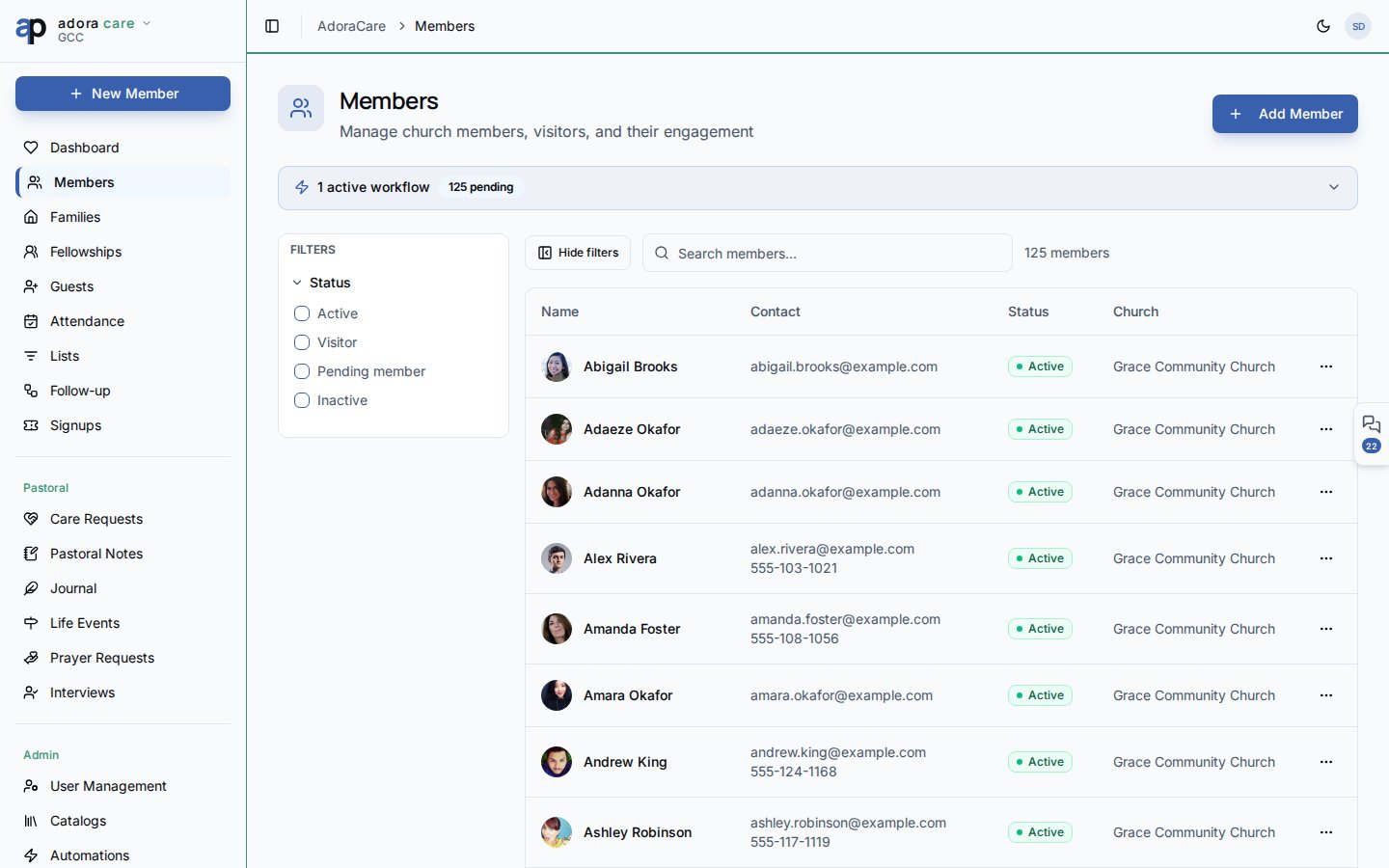
**Members** is your congregation directory in AdoraCare — track active members, visitors, and pending members, then open a rich profile for pastoral follow-up, involvement, and care history.
 ## Quick Start
1. Open **Care → Members** in the sidebar.
2. Search by name or filter by **Status** (Active, Visitor, Pending member, Inactive).
3. Click **Create → Add Member** to register someone new.
4. Click a row (or **View**) to open the member profile.
5. Use the profile tabs for journey, involvement, photos, and care activity.
***
## How-to Guide
### Members list
| Tool | Purpose |
| ------------------- | ------------------------------------------------- |
| **Search** | Find members by first or last name |
| **Status filters** | Narrow to visitors, active members, etc. |
| **Workflow banner** | Highlights automations triggered by member events |
Each row shows avatar, name, contact info, status badge, and quick actions (**Edit**, **View**, **Delete**).
### Member profile
The detail page groups pastoral context into tabs:
| Tab | What you see |
| ----------------- | ---------------------------------------------------------------- |
| **Overview** | Contact info, status, custom fields, quick actions |
| **Journey** | Life events, interviews, and membership milestones on a timeline |
| **Involvement** | Fellowships, serving, and program participation |
| **Care Activity** | Linked care requests, prayer items, and pastoral notes |
| **Photos** | Member photo gallery |
| **Counseling** | Linked AdoraCounsel cases (when enabled) |
Member status drives workflows — for example, **Visitor** and **Active** transitions can trigger follow-up tasks configured under **Care → Workflows**.
### Add or edit a member
From the list, click **Create → Add Member**, or open a profile and choose **Edit**.
Fill first name, last name, contact fields, and **Status**. Optional: link to a **Family** or **Collaborator** record.
The member appears in the directory and is available across Care modules (requests, prayer, life events).
***
## Related
Group members into households and mentorships.
Track first-time guests before they become members.
Log and resolve pastoral care needs per member.
Give members self-service access via secure tokens.
## Quick Start
1. Open **Care → Members** in the sidebar.
2. Search by name or filter by **Status** (Active, Visitor, Pending member, Inactive).
3. Click **Create → Add Member** to register someone new.
4. Click a row (or **View**) to open the member profile.
5. Use the profile tabs for journey, involvement, photos, and care activity.
***
## How-to Guide
### Members list
| Tool | Purpose |
| ------------------- | ------------------------------------------------- |
| **Search** | Find members by first or last name |
| **Status filters** | Narrow to visitors, active members, etc. |
| **Workflow banner** | Highlights automations triggered by member events |
Each row shows avatar, name, contact info, status badge, and quick actions (**Edit**, **View**, **Delete**).
### Member profile
The detail page groups pastoral context into tabs:
| Tab | What you see |
| ----------------- | ---------------------------------------------------------------- |
| **Overview** | Contact info, status, custom fields, quick actions |
| **Journey** | Life events, interviews, and membership milestones on a timeline |
| **Involvement** | Fellowships, serving, and program participation |
| **Care Activity** | Linked care requests, prayer items, and pastoral notes |
| **Photos** | Member photo gallery |
| **Counseling** | Linked AdoraCounsel cases (when enabled) |
Member status drives workflows — for example, **Visitor** and **Active** transitions can trigger follow-up tasks configured under **Care → Workflows**.
### Add or edit a member
From the list, click **Create → Add Member**, or open a profile and choose **Edit**.
Fill first name, last name, contact fields, and **Status**. Optional: link to a **Family** or **Collaborator** record.
The member appears in the directory and is available across Care modules (requests, prayer, life events).
***
## Related
Group members into households and mentorships.
Track first-time guests before they become members.
Log and resolve pastoral care needs per member.
Give members self-service access via secure tokens.