> ## Documentation Index
> Fetch the complete documentation index at: https://docs.adoraone.com/llms.txt
> Use this file to discover all available pages before exploring further.
# Presentation
> Display hymn lyrics and program slides full-screen for worship — from Hymns, Playlists, or Programs.
**Presentation Mode** projects hymn lyrics and custom program slides to a projector or second screen. Launch from **Hymns**, a **Playlist**, or a **Program**, then control slides from your laptop or phone.
 Presentation requires **AdoraPlan Pro** or **AdoraSuite** (`presentationMode` feature). Your church must also have the **advanced plan** capability to access presentation routes.
## Quick Start
1. Open a source with songs — **Hymns**, **Playlists**, or **Programs** (edit a program with hymns in the service order).
2. Click **Present** (or select multiple hymns → **Present**).
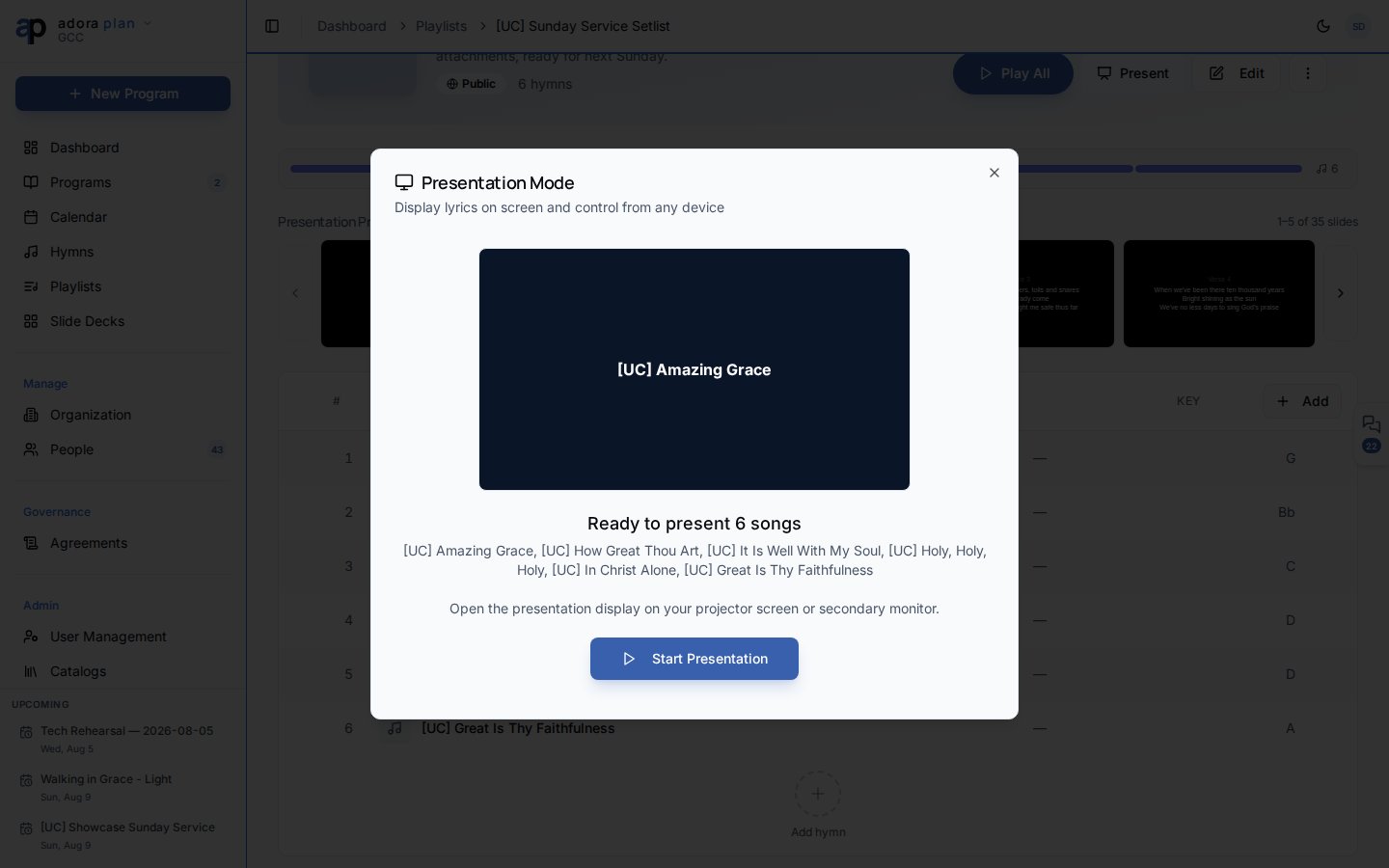
3. In the **Presentation Mode** dialog, click **Start Presentation**.
4. A display window opens at `/present` — drag it to your projector.
5. Use arrow keys or the launcher controls to advance slides. Expand **Use my phone as a remote** for a QR code.
***
## How-to Guide
### Where to launch
| Source | How to start |
| -------------------- | ------------------------------------------------------------------------------------------------- |
| **Hymns** (`/hymns`) | Select hymns → **Present**, or **Quick Present** on a single song |
| **Hymn detail** | **Present** button on the song page |
| **Playlist detail** | **Present**, or click a slide in **Presentation Preview** to start at that slide |
| **Program edit** | **Present** in the program header (when the service order has presentable songs or custom slides) |
Program presentations include **songs** and **custom slides** from the service order. Activity-only items are skipped.
### Presentation Mode dialog
Before you start:
* Preview the first slide
* See how many items will be presented and their titles
* Click **Start Presentation** to create a session and open the display window
After you start:
* Live slide preview with counter (e.g. 3 / 24)
* **Previous slide**, **Black**, **Next slide** buttons
* **Open Display Window** — reopen `/present` if the projector window was closed
* **Use my phone as a remote** — QR code and 6-character session code (see [Remote Control](/en/adoraplan/remote-control))
* **End** — close the session
### Display window (`/present`)
The projector window shows:
* Lyric slides with section labels (verse, chorus, etc.)
* Title slides and custom program slides
* Optional author and CCLI credits (from [Settings](/en/adoraplan/settings) → **Presentation**)
**Keyboard shortcuts:**
| Key | Action |
| ---------------- | ------------------------- |
| `→`, `Space` | Next slide |
| `←` | Previous slide |
| `↓`, `Page Down` | Next hymn |
| `↑`, `Page Up` | Previous hymn |
| `B` | Black screen |
| `W` | White screen |
| `N` | Presenter notes panel |
| `T` | Timer (30-minute default) |
| `F` | Fullscreen |
| `Escape` | Exit blank screen |
A control bar appears at the bottom when you move the mouse (auto-hides after a few seconds).
### Karaoke mode
Songs with synced audio can open **Karaoke** from the hymn page — a separate full-screen view at `/present/karaoke?songId=…` with timed lyric highlighting. Tune appearance under **Settings** → **Karaoke**.
### Customize appearance
**Settings** → **Presentation** controls font size, colors, and which elements appear on slides (title slide, CCLI, author, etc.). Settings are saved per browser/device.
For synced audio that auto-advances slides with the recording, enable synced presentation when the song has lyric-audio timing data.
***
## Related
Build song sets and present them in order.
Present the full service order including custom slides.
Control slides from your phone during worship.
Source lyrics for every slide.
Presentation requires **AdoraPlan Pro** or **AdoraSuite** (`presentationMode` feature). Your church must also have the **advanced plan** capability to access presentation routes.
## Quick Start
1. Open a source with songs — **Hymns**, **Playlists**, or **Programs** (edit a program with hymns in the service order).
2. Click **Present** (or select multiple hymns → **Present**).
3. In the **Presentation Mode** dialog, click **Start Presentation**.
4. A display window opens at `/present` — drag it to your projector.
5. Use arrow keys or the launcher controls to advance slides. Expand **Use my phone as a remote** for a QR code.
***
## How-to Guide
### Where to launch
| Source | How to start |
| -------------------- | ------------------------------------------------------------------------------------------------- |
| **Hymns** (`/hymns`) | Select hymns → **Present**, or **Quick Present** on a single song |
| **Hymn detail** | **Present** button on the song page |
| **Playlist detail** | **Present**, or click a slide in **Presentation Preview** to start at that slide |
| **Program edit** | **Present** in the program header (when the service order has presentable songs or custom slides) |
Program presentations include **songs** and **custom slides** from the service order. Activity-only items are skipped.
### Presentation Mode dialog
Before you start:
* Preview the first slide
* See how many items will be presented and their titles
* Click **Start Presentation** to create a session and open the display window
After you start:
* Live slide preview with counter (e.g. 3 / 24)
* **Previous slide**, **Black**, **Next slide** buttons
* **Open Display Window** — reopen `/present` if the projector window was closed
* **Use my phone as a remote** — QR code and 6-character session code (see [Remote Control](/en/adoraplan/remote-control))
* **End** — close the session
### Display window (`/present`)
The projector window shows:
* Lyric slides with section labels (verse, chorus, etc.)
* Title slides and custom program slides
* Optional author and CCLI credits (from [Settings](/en/adoraplan/settings) → **Presentation**)
**Keyboard shortcuts:**
| Key | Action |
| ---------------- | ------------------------- |
| `→`, `Space` | Next slide |
| `←` | Previous slide |
| `↓`, `Page Down` | Next hymn |
| `↑`, `Page Up` | Previous hymn |
| `B` | Black screen |
| `W` | White screen |
| `N` | Presenter notes panel |
| `T` | Timer (30-minute default) |
| `F` | Fullscreen |
| `Escape` | Exit blank screen |
A control bar appears at the bottom when you move the mouse (auto-hides after a few seconds).
### Karaoke mode
Songs with synced audio can open **Karaoke** from the hymn page — a separate full-screen view at `/present/karaoke?songId=…` with timed lyric highlighting. Tune appearance under **Settings** → **Karaoke**.
### Customize appearance
**Settings** → **Presentation** controls font size, colors, and which elements appear on slides (title slide, CCLI, author, etc.). Settings are saved per browser/device.
For synced audio that auto-advances slides with the recording, enable synced presentation when the song has lyric-audio timing data.
***
## Related
Build song sets and present them in order.
Present the full service order including custom slides.
Control slides from your phone during worship.
Source lyrics for every slide.