> ## Documentation Index
> Fetch the complete documentation index at: https://docs.adoraone.com/llms.txt
> Use this file to discover all available pages before exploring further.
# Remote Control
> Control an active presentation from your phone — advance slides, blank the screen, and jump between hymns.
Use your **phone as a presentation remote** while worship plays on the projector. Connect with a 6-character session code from an active presentation, then advance lines, jump hymns, or blank the screen from the aisle.
 ## Quick Start
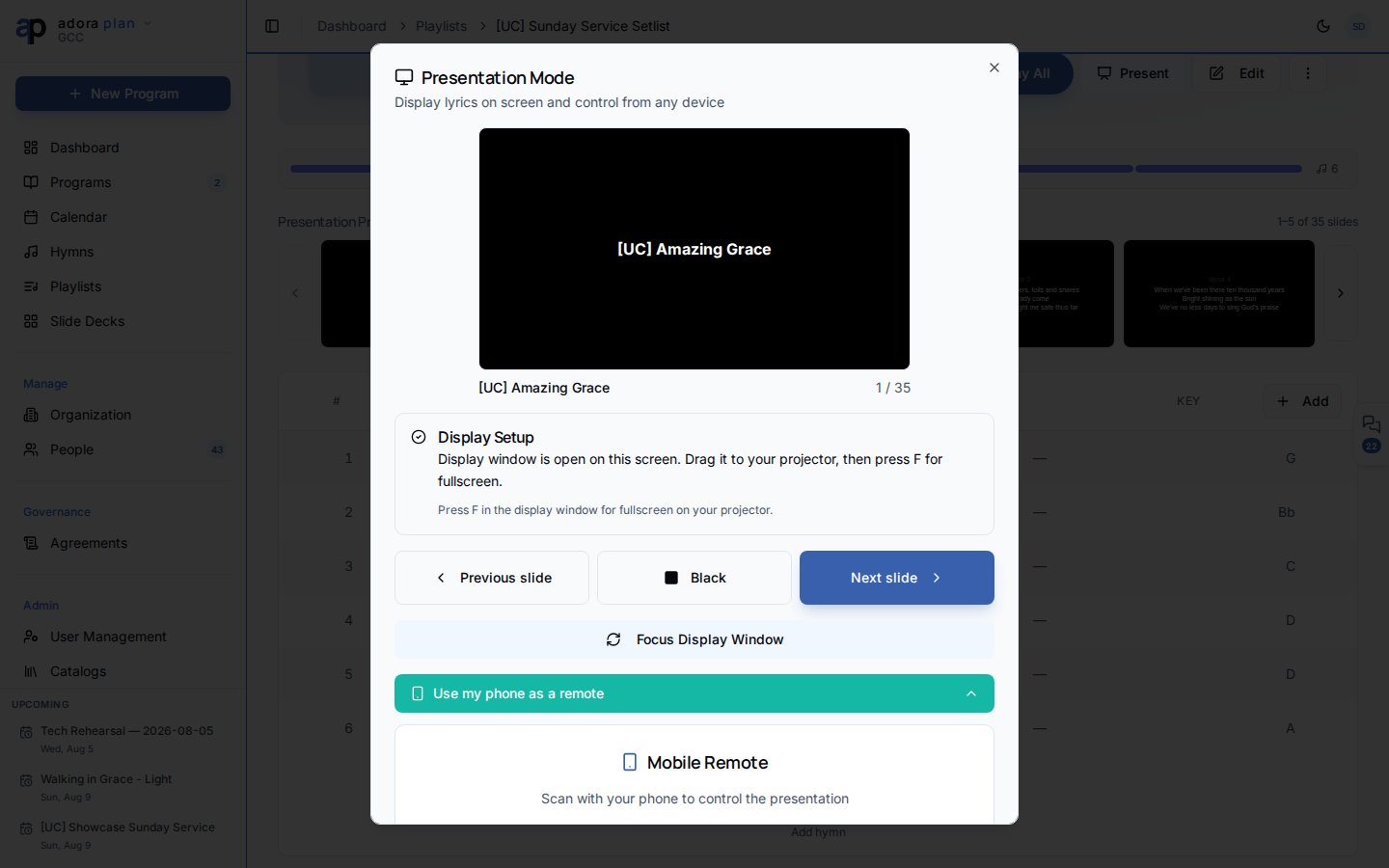
1. Start a presentation from **Hymns**, **Playlists**, or **Programs** (see [Presentation](/en/adoraplan/presentation)).
2. In the launcher, expand **Use my phone as a remote**.
3. Scan the QR code or note the 6-character code.
4. On your phone, open the link or go to `/present/remote` and enter the code.
5. Tap **NEXT LINE** / **PREV LINE** or swipe to control slides.
***
## How-to Guide
### Get a session code
When a presentation is running, the host sees:
* A **QR code** linking to `/present/remote?session=XXXXXX`
* **Copy link** and **Copy code** buttons
* Instructions to type the code manually at `/present/remote`
The code is generated when the session starts and syncs over Supabase Realtime (and same-browser tabs via `BroadcastChannel`).
### Connect your phone
**Option A — QR code (recommended):** After starting a presentation, expand **Use my phone as a remote** in the launcher. Scan the QR code with your phone camera.
**Option B — Manual entry:** Open `/present/remote` on your phone, type the 6-character session code shown below the QR code, and tap **Connect**.
### Remote controls
Once connected, the remote shows:
| Control | Action |
| ----------------------------- | -------------------------------------- |
| **PREV LINE** / **NEXT LINE** | Move one lyric slide |
| **PREV HYMN** / **NEXT HYMN** | Jump to the previous or next song |
| **BLACK** / **WHITE** | Blank the projector (black or white) |
| **SONGS** | Open a list to jump directly to a hymn |
**Swipe gestures:** left/right for lines, up/down for hymns. Mobile devices get light haptic feedback on each command.
The header shows connection status (**Live**, **Connecting…**, or **Disconnected**) and the active session code. The current slide card displays song title, section, hymn/slide position, and a lyric preview.
### What the remote controls
The remote mirrors whatever the host started — a hymn selection, a playlist, or a full program (including custom slides). It does not choose the song list; it only controls the active session.
The remote requires an **active presentation session** on the host computer. If the presenter ends the session or closes the browser, the remote disconnects.
Keep the laptop on Wi‑Fi with the presentation window open. The display window (`/present`) and launcher both act as the host.
***
## Related
Start a session and generate the remote QR code.
Present an ordered set of hymns with one click.
Presentation and Karaoke display settings.
Present the full service order from the program editor.
## Quick Start
1. Start a presentation from **Hymns**, **Playlists**, or **Programs** (see [Presentation](/en/adoraplan/presentation)).
2. In the launcher, expand **Use my phone as a remote**.
3. Scan the QR code or note the 6-character code.
4. On your phone, open the link or go to `/present/remote` and enter the code.
5. Tap **NEXT LINE** / **PREV LINE** or swipe to control slides.
***
## How-to Guide
### Get a session code
When a presentation is running, the host sees:
* A **QR code** linking to `/present/remote?session=XXXXXX`
* **Copy link** and **Copy code** buttons
* Instructions to type the code manually at `/present/remote`
The code is generated when the session starts and syncs over Supabase Realtime (and same-browser tabs via `BroadcastChannel`).
### Connect your phone
**Option A — QR code (recommended):** After starting a presentation, expand **Use my phone as a remote** in the launcher. Scan the QR code with your phone camera.
**Option B — Manual entry:** Open `/present/remote` on your phone, type the 6-character session code shown below the QR code, and tap **Connect**.
### Remote controls
Once connected, the remote shows:
| Control | Action |
| ----------------------------- | -------------------------------------- |
| **PREV LINE** / **NEXT LINE** | Move one lyric slide |
| **PREV HYMN** / **NEXT HYMN** | Jump to the previous or next song |
| **BLACK** / **WHITE** | Blank the projector (black or white) |
| **SONGS** | Open a list to jump directly to a hymn |
**Swipe gestures:** left/right for lines, up/down for hymns. Mobile devices get light haptic feedback on each command.
The header shows connection status (**Live**, **Connecting…**, or **Disconnected**) and the active session code. The current slide card displays song title, section, hymn/slide position, and a lyric preview.
### What the remote controls
The remote mirrors whatever the host started — a hymn selection, a playlist, or a full program (including custom slides). It does not choose the song list; it only controls the active session.
The remote requires an **active presentation session** on the host computer. If the presenter ends the session or closes the browser, the remote disconnects.
Keep the laptop on Wi‑Fi with the presentation window open. The display window (`/present`) and launcher both act as the host.
***
## Related
Start a session and generate the remote QR code.
Present an ordered set of hymns with one click.
Presentation and Karaoke display settings.
Present the full service order from the program editor.