> ## Documentation Index
> Fetch the complete documentation index at: https://docs.adoraone.com/llms.txt
> Use this file to discover all available pages before exploring further.
# Roster
> Staff programs, balance volunteer workload, and let volunteers manage their schedule.
**Roster** is your staffing command center — see which **Programs** need volunteers, auto-schedule fairly, spot burnout risk, and let volunteers accept assignments or claim open slots.
 ## Quick Start
1. Open **Roster** in the sidebar (under **Manage**).
2. On **Overview**, scan programs that need attention and use **Auto-schedule understaffed** when many slots are open.
3. Click a program row to open its **Roster** tab in the program editor.
4. Use **Auto-fill from Template**, then **Auto-schedule** or assign volunteers manually.
5. Check **Volunteer Health** for overloaded volunteers serving across multiple ministries.
***
## How-to Guide
### Overview tab
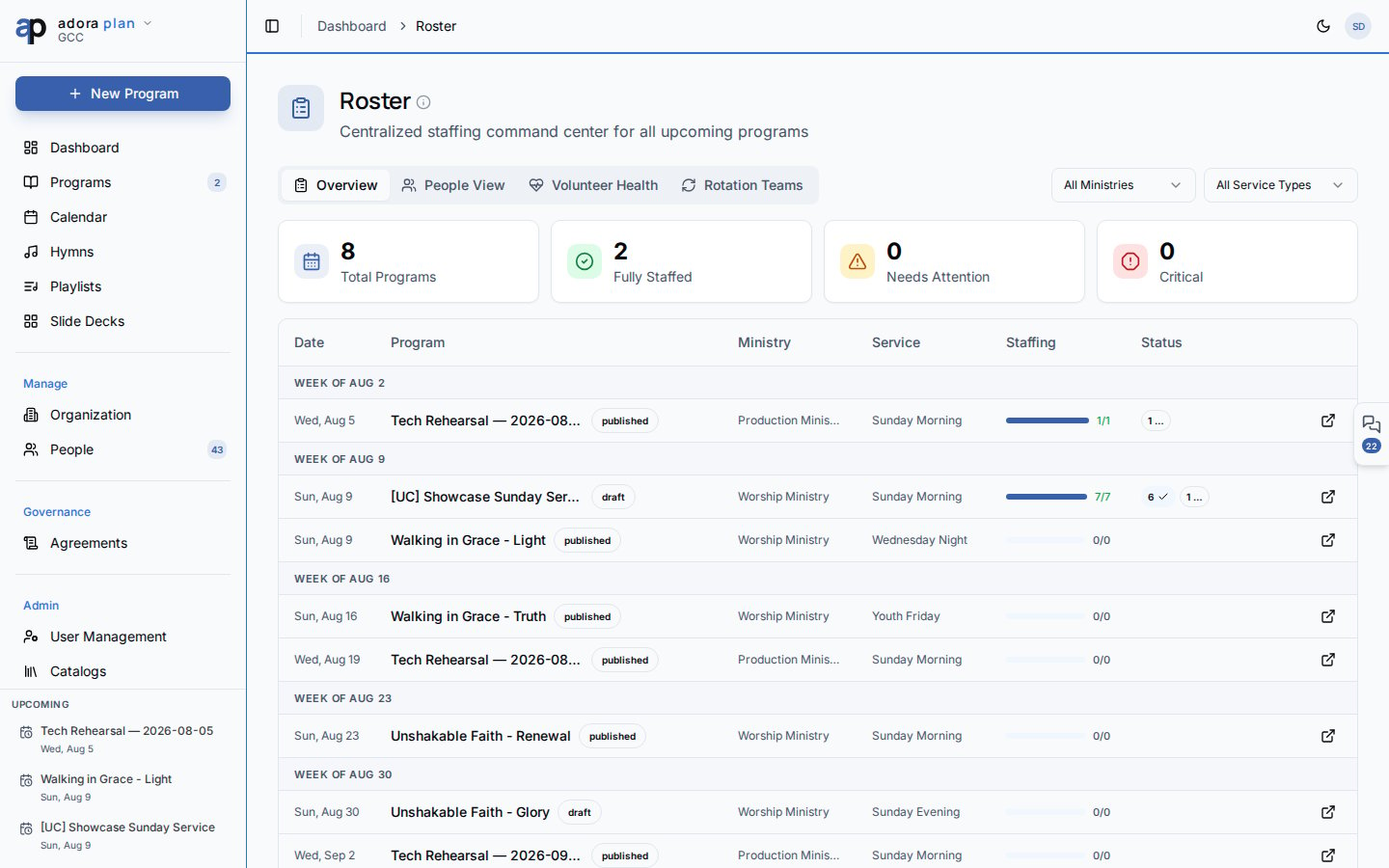
The **Overview** tab groups upcoming programs by week.
| Column | Meaning |
| ------------ | ------------------------------------------- |
| **Staffing** | Filled vs. required slots |
| **Status** | Fully staffed, needs attention, or critical |
Stat cards summarize **Total Programs**, **Fully Staffed**, **Needs Attention**, and **Critical**.
**Auto-schedule understaffed** fills open slots across all programs that still need volunteers, using fairness rules (volunteers who have waited longest since they last served are picked first).
Click **Open program** (external link icon) to jump to that program’s roster editor.
### People View tab
## Quick Start
1. Open **Roster** in the sidebar (under **Manage**).
2. On **Overview**, scan programs that need attention and use **Auto-schedule understaffed** when many slots are open.
3. Click a program row to open its **Roster** tab in the program editor.
4. Use **Auto-fill from Template**, then **Auto-schedule** or assign volunteers manually.
5. Check **Volunteer Health** for overloaded volunteers serving across multiple ministries.
***
## How-to Guide
### Overview tab
The **Overview** tab groups upcoming programs by week.
| Column | Meaning |
| ------------ | ------------------------------------------- |
| **Staffing** | Filled vs. required slots |
| **Status** | Fully staffed, needs attention, or critical |
Stat cards summarize **Total Programs**, **Fully Staffed**, **Needs Attention**, and **Critical**.
**Auto-schedule understaffed** fills open slots across all programs that still need volunteers, using fairness rules (volunteers who have waited longest since they last served are picked first).
Click **Open program** (external link icon) to jump to that program’s roster editor.
### People View tab
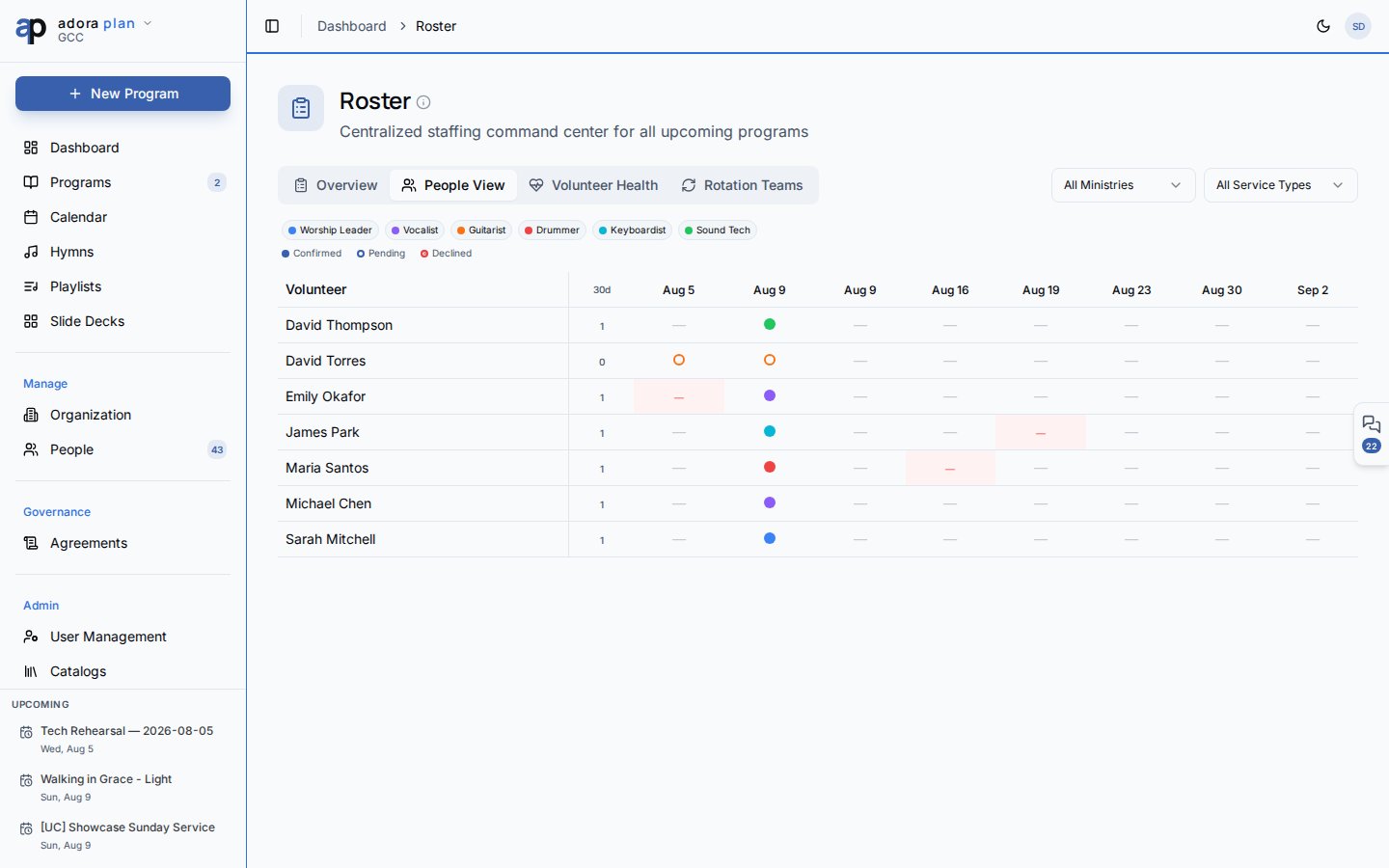 **People View** is a matrix of volunteers × upcoming programs.
* Colored cells show role assignments (filled = confirmed, outline = pending, ✕ = declined).
* **Double-booked!** highlights scheduling conflicts on the same date.
* Filter by role using the legend.
* **30d** column shows serving frequency; high frequency (4+ serves) shows a warning icon.
### Volunteer Health tab
**People View** is a matrix of volunteers × upcoming programs.
* Colored cells show role assignments (filled = confirmed, outline = pending, ✕ = declined).
* **Double-booked!** highlights scheduling conflicts on the same date.
* Filter by role using the legend.
* **30d** column shows serving frequency; high frequency (4+ serves) shows a warning icon.
### Volunteer Health tab
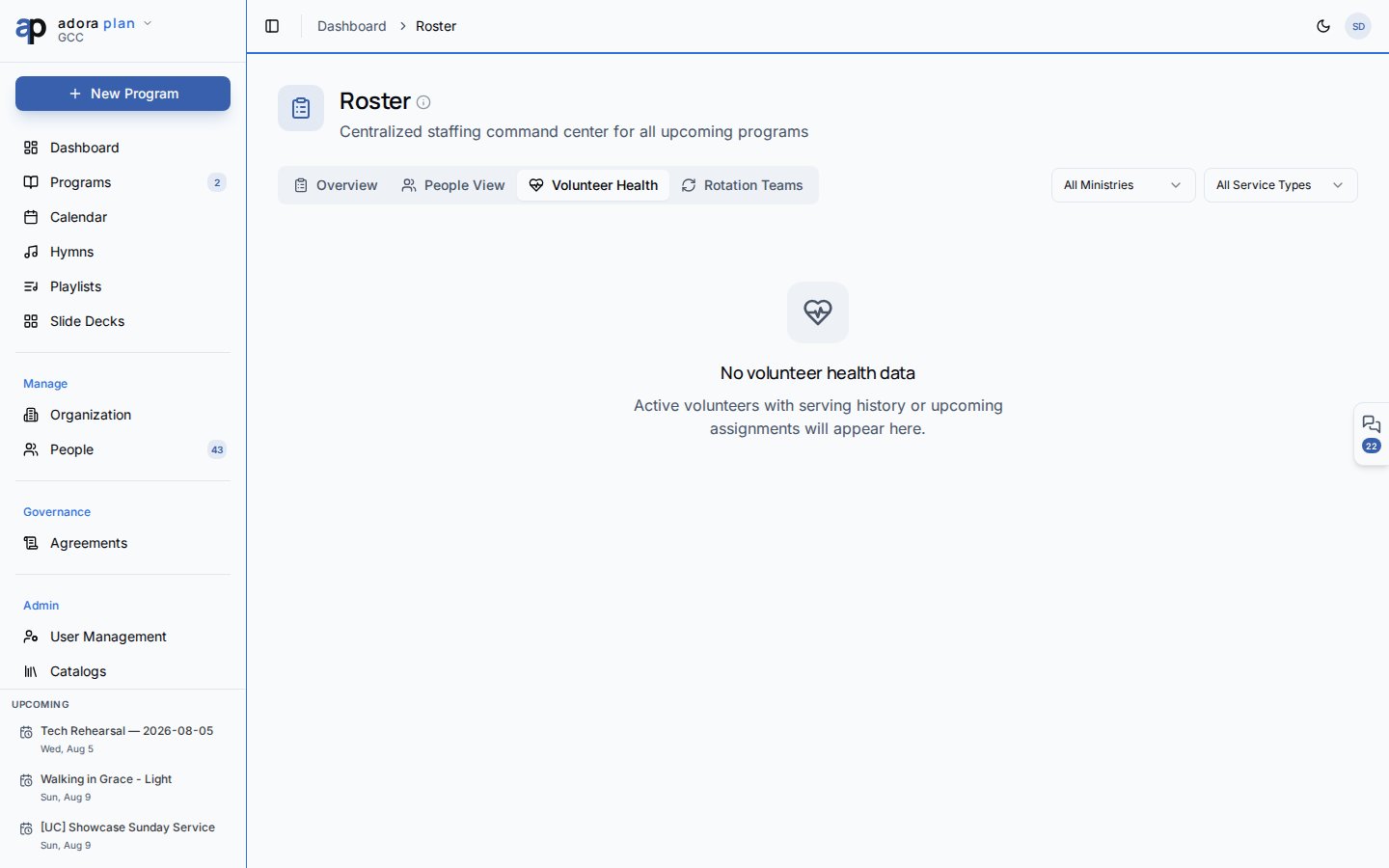 Use **Volunteer Health** to balance workload before volunteers burn out.
| Status | Meaning |
| ----------------- | -------------------------------------------------------------------------------------- |
| **At risk** | High recent serving frequency, heavy cross-ministry load, or many upcoming assignments |
| **Balanced** | Active serving pattern within healthy limits |
| **Underutilized** | Qualified volunteer who has not served recently |
| **Inactive** | No recent serves or upcoming assignments |
The **Cross-ministry load** section highlights volunteers serving in two or more ministries. Expand a row to see the per-ministry breakdown.
Enable **Serving Frequency Alert** under workflow settings to receive automatic **burnout\_warning** notifications when a volunteer exceeds your monthly serving threshold.
### Rotation Teams tab
Organize volunteers into teams with a rotation pattern:
| Pattern | Example |
| ----------------- | ------------------------- |
| **Every Week** | Team serves each Sunday |
| **Weeks 1 & 3** | Alternating month pattern |
| **1st Week Only** | Once per month |
Create a team, add members by role, then click **Apply to upcoming programs** to pre-fill matching program slots for the next 90 days.
### Assign roster on a program
Go to **Programs** → open a program → **People** tab → **Roster** sub-tab.
Click **Auto-fill from Template** to create slots from the **Service Type** staffing requirements (set in **Organization**).
Use **Auto-schedule** for fair automatic assignment, **Assign** for manual picks, or **Assign Team** for a rotation team.
Toggle **Signup** on an unassigned slot so qualified volunteers can claim it from **My Schedule**.
Statuses: **Unassigned**, **Pending**, **Confirmed**, **Declined**, **No Show**.
### Volunteer self-service (My Schedule)
Use **Volunteer Health** to balance workload before volunteers burn out.
| Status | Meaning |
| ----------------- | -------------------------------------------------------------------------------------- |
| **At risk** | High recent serving frequency, heavy cross-ministry load, or many upcoming assignments |
| **Balanced** | Active serving pattern within healthy limits |
| **Underutilized** | Qualified volunteer who has not served recently |
| **Inactive** | No recent serves or upcoming assignments |
The **Cross-ministry load** section highlights volunteers serving in two or more ministries. Expand a row to see the per-ministry breakdown.
Enable **Serving Frequency Alert** under workflow settings to receive automatic **burnout\_warning** notifications when a volunteer exceeds your monthly serving threshold.
### Rotation Teams tab
Organize volunteers into teams with a rotation pattern:
| Pattern | Example |
| ----------------- | ------------------------- |
| **Every Week** | Team serves each Sunday |
| **Weeks 1 & 3** | Alternating month pattern |
| **1st Week Only** | Once per month |
Create a team, add members by role, then click **Apply to upcoming programs** to pre-fill matching program slots for the next 90 days.
### Assign roster on a program
Go to **Programs** → open a program → **People** tab → **Roster** sub-tab.
Click **Auto-fill from Template** to create slots from the **Service Type** staffing requirements (set in **Organization**).
Use **Auto-schedule** for fair automatic assignment, **Assign** for manual picks, or **Assign Team** for a rotation team.
Toggle **Signup** on an unassigned slot so qualified volunteers can claim it from **My Schedule**.
Statuses: **Unassigned**, **Pending**, **Confirmed**, **Declined**, **No Show**.
### Volunteer self-service (My Schedule)
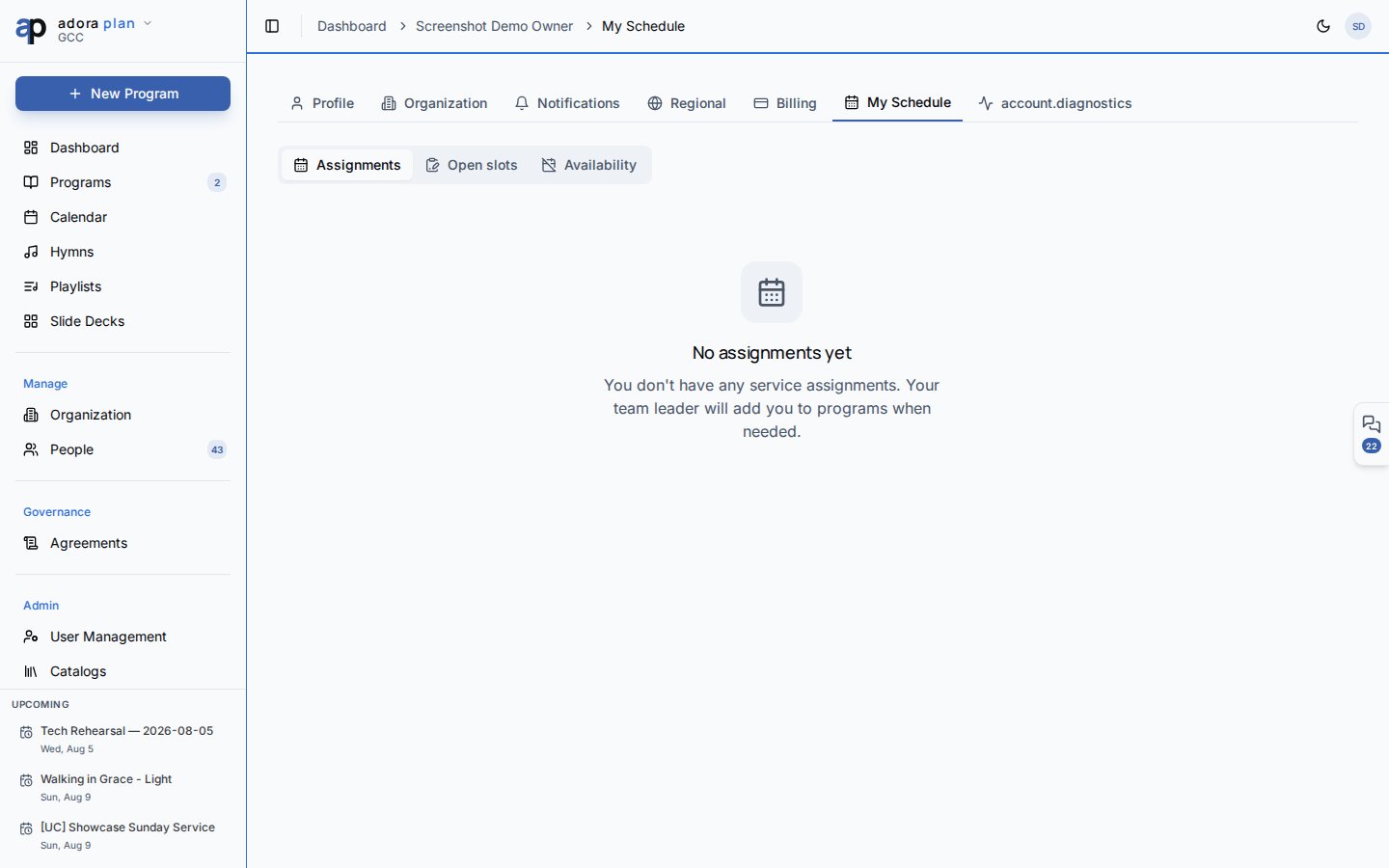 Volunteers open **Account → My Schedule** (`/account/schedule`).
| Tab | Purpose |
| ---------------- | -------------------------------------------------------------------- |
| **Assignments** | Accept or decline pending invitations; view upcoming and past serves |
| **Open slots** | Claim signup opportunities you are qualified for |
| **Availability** | Add blockout dates so planners avoid scheduling conflicts |
When a volunteer **declines**, the system can automatically invite the next qualified, available volunteer when one exists.
Volunteers need a linked **collaborator** profile. If **My Schedule** shows “No serving profile linked,” ask a church admin to connect the account in **People**.
***
## Smart scheduling at a glance
| Action | Where | What it does |
| -------------------------- | ------------------------ | -------------------------------------------------- |
| Auto-fill from Template | Program roster | Creates empty slots from service-type requirements |
| Auto-schedule | Program roster | Fills open slots fairly (skips signup-open slots) |
| Auto-schedule understaffed | Roster Overview | Batch auto-schedule across programs |
| Apply to upcoming programs | Rotation Teams | Assigns team members to pattern-matched dates |
| Open signup | Program roster toggle | Lets volunteers self-claim the slot |
| Claim slot | My Schedule → Open slots | Volunteer takes an open signup slot |
***
## Related
Add collaborators and set role qualifications.
Define staffing templates per service type.
Per-program roster editing from the program editor.
Roster invitations and burnout warnings.
Volunteers open **Account → My Schedule** (`/account/schedule`).
| Tab | Purpose |
| ---------------- | -------------------------------------------------------------------- |
| **Assignments** | Accept or decline pending invitations; view upcoming and past serves |
| **Open slots** | Claim signup opportunities you are qualified for |
| **Availability** | Add blockout dates so planners avoid scheduling conflicts |
When a volunteer **declines**, the system can automatically invite the next qualified, available volunteer when one exists.
Volunteers need a linked **collaborator** profile. If **My Schedule** shows “No serving profile linked,” ask a church admin to connect the account in **People**.
***
## Smart scheduling at a glance
| Action | Where | What it does |
| -------------------------- | ------------------------ | -------------------------------------------------- |
| Auto-fill from Template | Program roster | Creates empty slots from service-type requirements |
| Auto-schedule | Program roster | Fills open slots fairly (skips signup-open slots) |
| Auto-schedule understaffed | Roster Overview | Batch auto-schedule across programs |
| Apply to upcoming programs | Rotation Teams | Assigns team members to pattern-matched dates |
| Open signup | Program roster toggle | Lets volunteers self-claim the slot |
| Claim slot | My Schedule → Open slots | Volunteer takes an open signup slot |
***
## Related
Add collaborators and set role qualifications.
Define staffing templates per service type.
Per-program roster editing from the program editor.
Roster invitations and burnout warnings.