> ## Documentation Index
> Fetch the complete documentation index at: https://docs.adoraone.com/llms.txt
> Use this file to discover all available pages before exploring further.
# Settings
> Configure church branding, program defaults, presentation mode, portal access, and more.
**Settings** is where your church customizes how Adora looks and behaves — branding, program shortcuts, presentation slides, member portal options, and (for admins) community moderation.
Open **Settings** from your profile menu in the top-right corner of the app.
 ## Quick Start
1. Click your avatar → **Settings**.
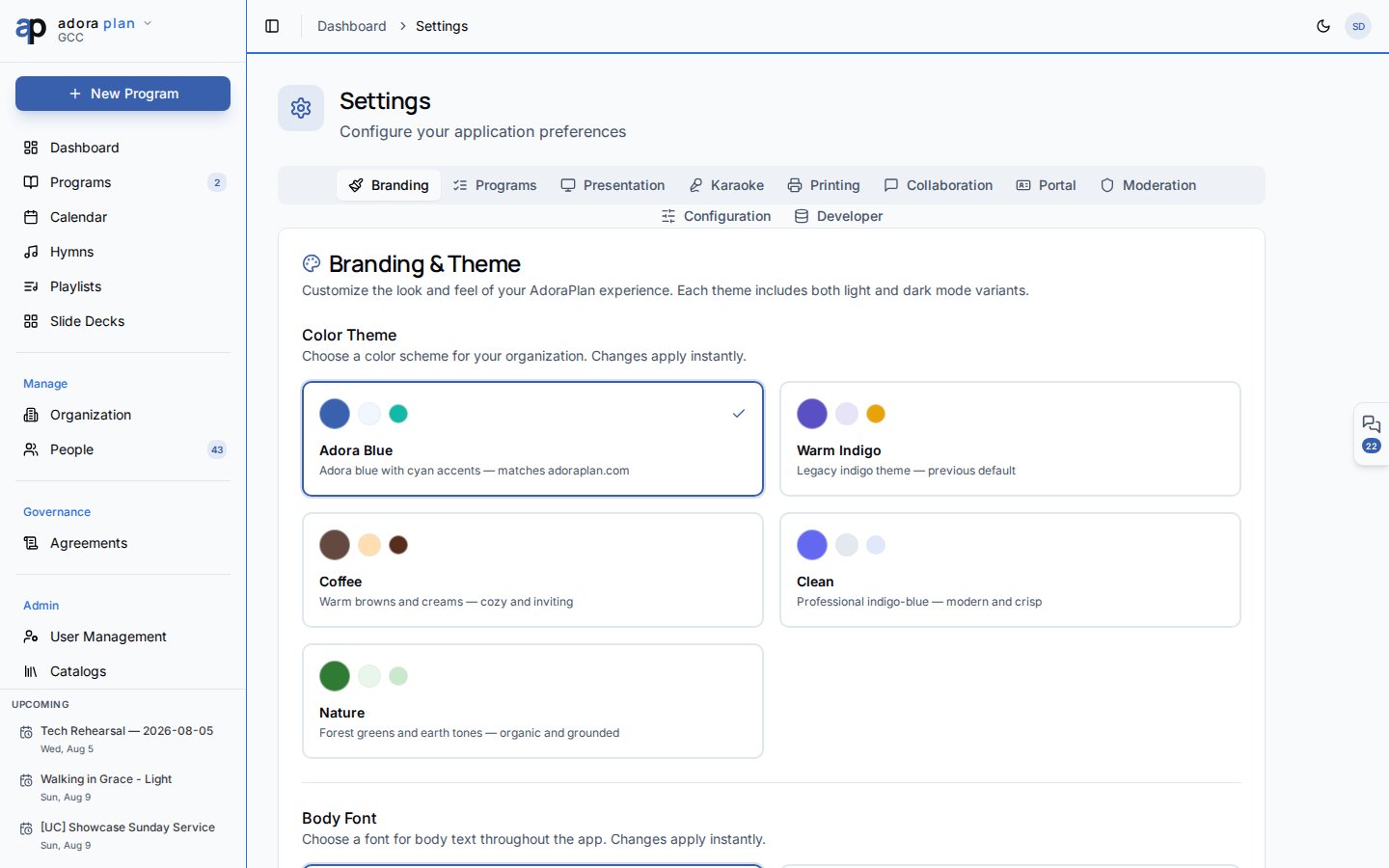
2. On **Branding**, pick a color theme and body font for your church.
3. Open **Programs** to set date quick-buttons and title auto-generation.
4. Tune **Presentation** fonts and slide options for worship display mode.
5. Admins: configure **Portal** to enable the member portal and its features.
***
## How-to Guide
### Branding
Customize your church's visual identity:
* **Color theme** — applies across the app for all users in your church
* **Body font** — typography for the interface
* **Print / PDF defaults** — logo, colors, footer text, and default worship report template (Pro plans unlock full PDF branding)
Changes save to your church tenant and apply organization-wide.
### Programs
## Quick Start
1. Click your avatar → **Settings**.
2. On **Branding**, pick a color theme and body font for your church.
3. Open **Programs** to set date quick-buttons and title auto-generation.
4. Tune **Presentation** fonts and slide options for worship display mode.
5. Admins: configure **Portal** to enable the member portal and its features.
***
## How-to Guide
### Branding
Customize your church's visual identity:
* **Color theme** — applies across the app for all users in your church
* **Body font** — typography for the interface
* **Print / PDF defaults** — logo, colors, footer text, and default worship report template (Pro plans unlock full PDF branding)
Changes save to your church tenant and apply organization-wide.
### Programs
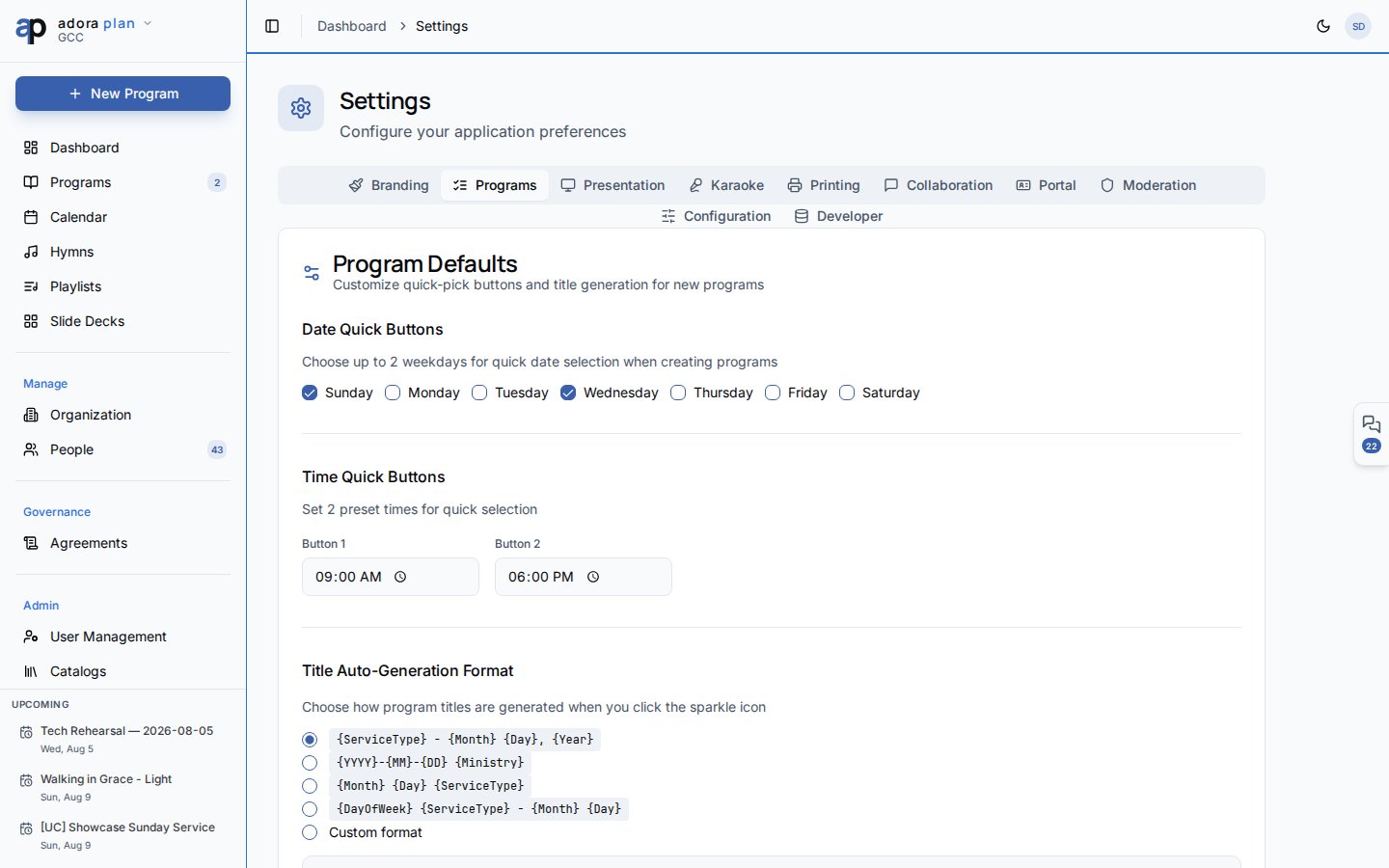 Speed up program creation:
| Setting | Purpose |
| ------------------------------- | -------------------------------------------------------------------------------------------- |
| **Date quick buttons** | Up to two weekday shortcuts on the create-program form |
| **Time presets** | Common service start times |
| **Title auto-generation** | Tokens like date, service type, and church name |
| **Report preparation reminder** | Hours before a service when planners are nudged to finalize the worship report (1–168 hours) |
### Presentation
Speed up program creation:
| Setting | Purpose |
| ------------------------------- | -------------------------------------------------------------------------------------------- |
| **Date quick buttons** | Up to two weekday shortcuts on the create-program form |
| **Time presets** | Common service start times |
| **Title auto-generation** | Tokens like date, service type, and church name |
| **Report preparation reminder** | Hours before a service when planners are nudged to finalize the worship report (1–168 hours) |
### Presentation
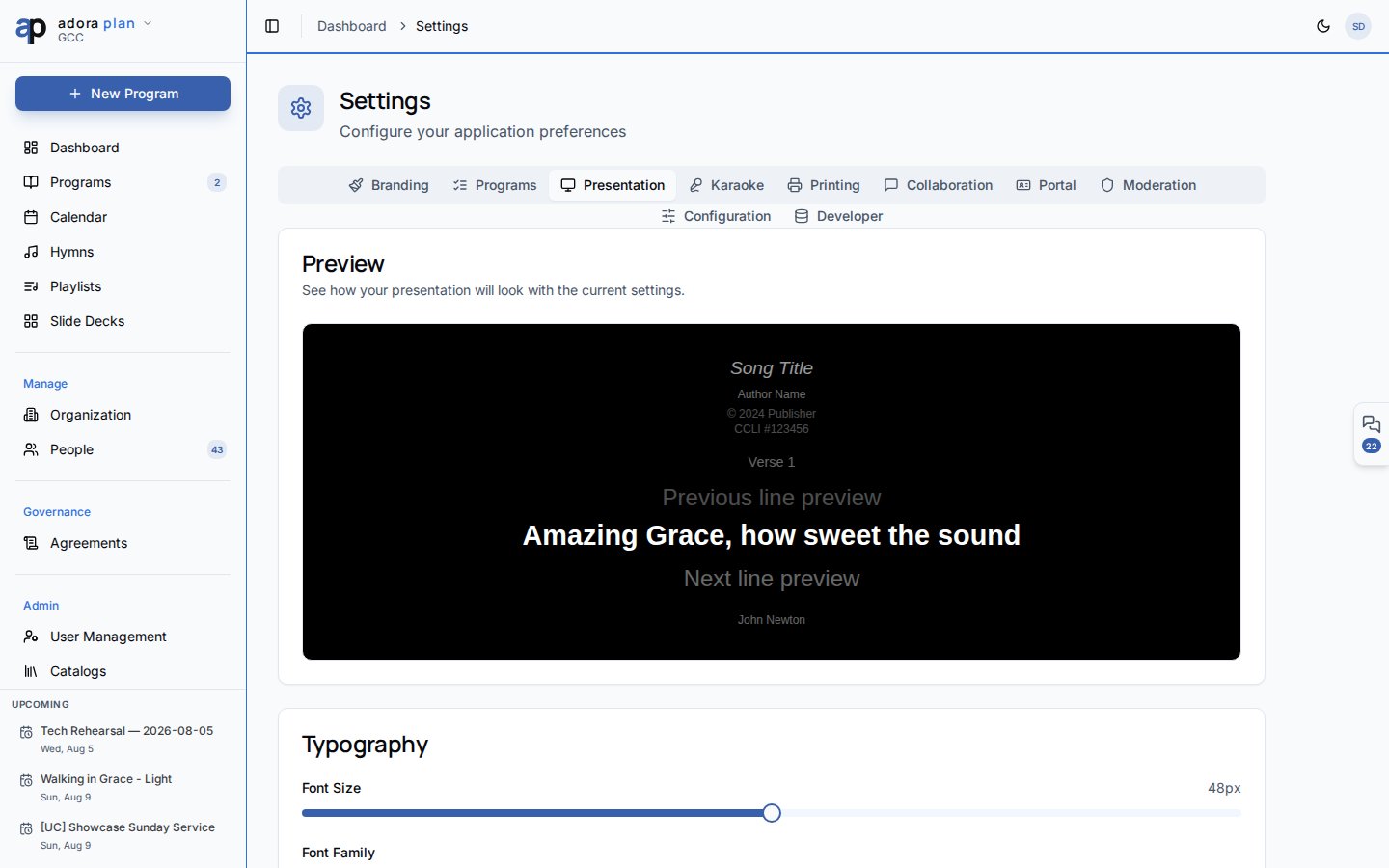 Configure **Presentation Mode** slide appearance:
* Font size and family
* Background and text colors
* Toggles for title slide, CCLI number, author, and other on-screen elements
Presentation settings are stored per browser/device (local to each computer running slides).
### Karaoke
Adjust karaoke-style lyric display (font, colors, layout) for songs that support it. Like presentation settings, these are saved locally on each device.
### Printing
Placeholder for future print-layout options. Use **Branding** → Print / PDF defaults for worship report styling today.
### Portal (admins & moderators)
Enable the **member portal** and choose which features members can access:
* Family profiles, events, serving sign-ups, prayer requests, directory
* Control which directory fields are visible
* Copy the portal URL to share with your congregation
### Moderation (admins & moderators)
Review **community templates** shared between churches:
* **Pending** — new submissions awaiting approval
* **Approved** / **Rejected** — history with reject reasons
### Developer (church owner only)
Tools for the account that created your church:
* **Integration health** — connectivity checks (database, auth, Stripe, edge functions, analytics, storage)
* **Demo data** — seed or wipe sample records (non-production environments)
* **Notification tester** — send test in-app and email notifications
**Configuration** (plan override) appears only in development environments. Most churches will never see this tab.
Personal preferences — language, billing, notification toggles — live under **Account**, not Settings. Open your avatar → **Account** → **Regional** or **Notifications**.
***
## Related
Church structure, ministries, and service types.
Run slides during worship using your presentation settings.
Per-user notification preferences under Account.
Upgrade for PDF branding, advanced reports, and more.
Configure **Presentation Mode** slide appearance:
* Font size and family
* Background and text colors
* Toggles for title slide, CCLI number, author, and other on-screen elements
Presentation settings are stored per browser/device (local to each computer running slides).
### Karaoke
Adjust karaoke-style lyric display (font, colors, layout) for songs that support it. Like presentation settings, these are saved locally on each device.
### Printing
Placeholder for future print-layout options. Use **Branding** → Print / PDF defaults for worship report styling today.
### Portal (admins & moderators)
Enable the **member portal** and choose which features members can access:
* Family profiles, events, serving sign-ups, prayer requests, directory
* Control which directory fields are visible
* Copy the portal URL to share with your congregation
### Moderation (admins & moderators)
Review **community templates** shared between churches:
* **Pending** — new submissions awaiting approval
* **Approved** / **Rejected** — history with reject reasons
### Developer (church owner only)
Tools for the account that created your church:
* **Integration health** — connectivity checks (database, auth, Stripe, edge functions, analytics, storage)
* **Demo data** — seed or wipe sample records (non-production environments)
* **Notification tester** — send test in-app and email notifications
**Configuration** (plan override) appears only in development environments. Most churches will never see this tab.
Personal preferences — language, billing, notification toggles — live under **Account**, not Settings. Open your avatar → **Account** → **Regional** or **Notifications**.
***
## Related
Church structure, ministries, and service types.
Run slides during worship using your presentation settings.
Per-user notification preferences under Account.
Upgrade for PDF branding, advanced reports, and more.