

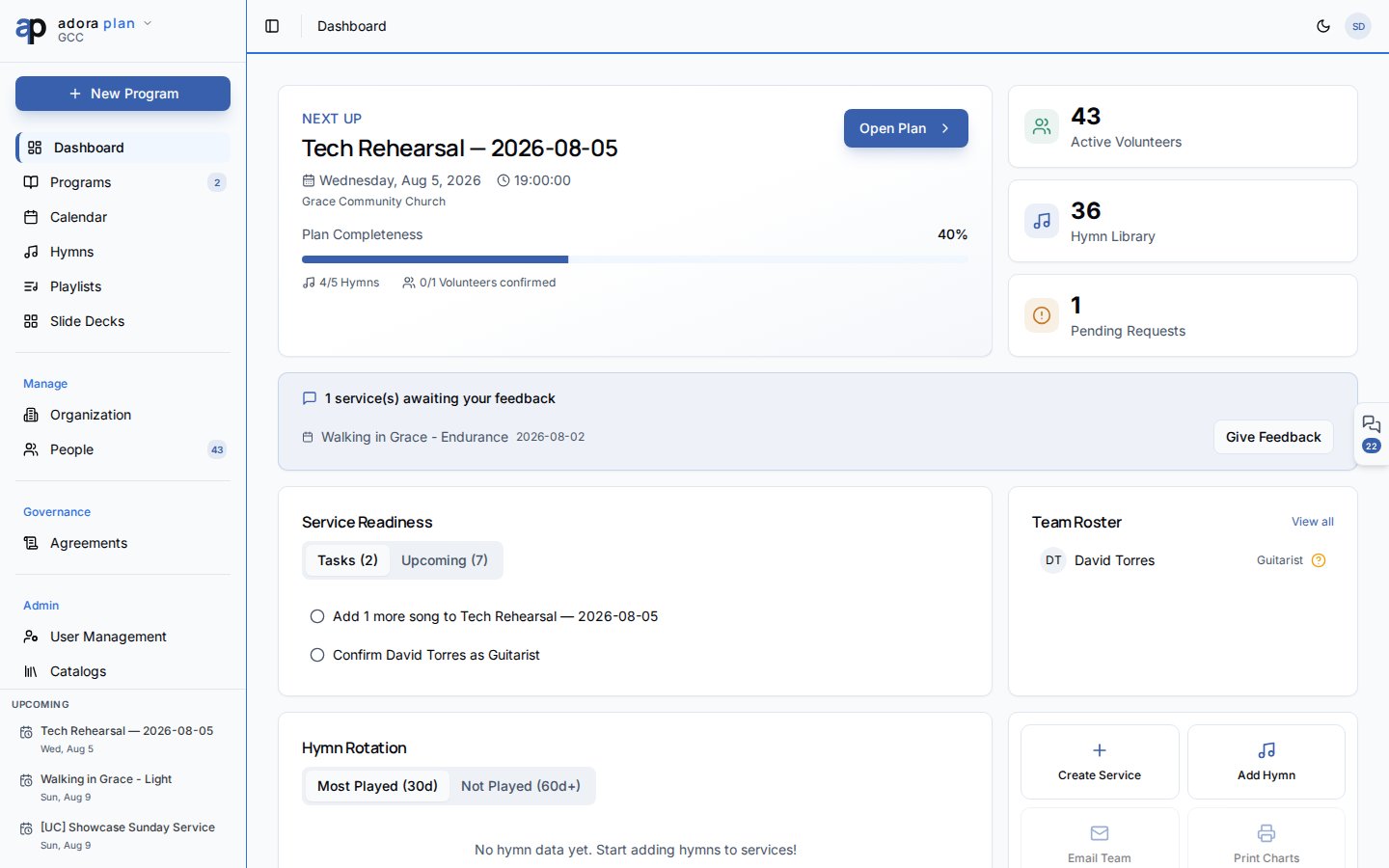
Quick Start
- Open any planning screen (for example Programs or Dashboard).
- Click the Collaboration tab on the right edge — or press ⌘J / Ctrl+J.
- On Chats, pick your service channel or Adora Assistant.
- Check My Msgs for roster invitations and notifications that need action.
- Adjust chat retention under Settings → Collaboration.
How-to Guide
Open the Collaboration sidebar
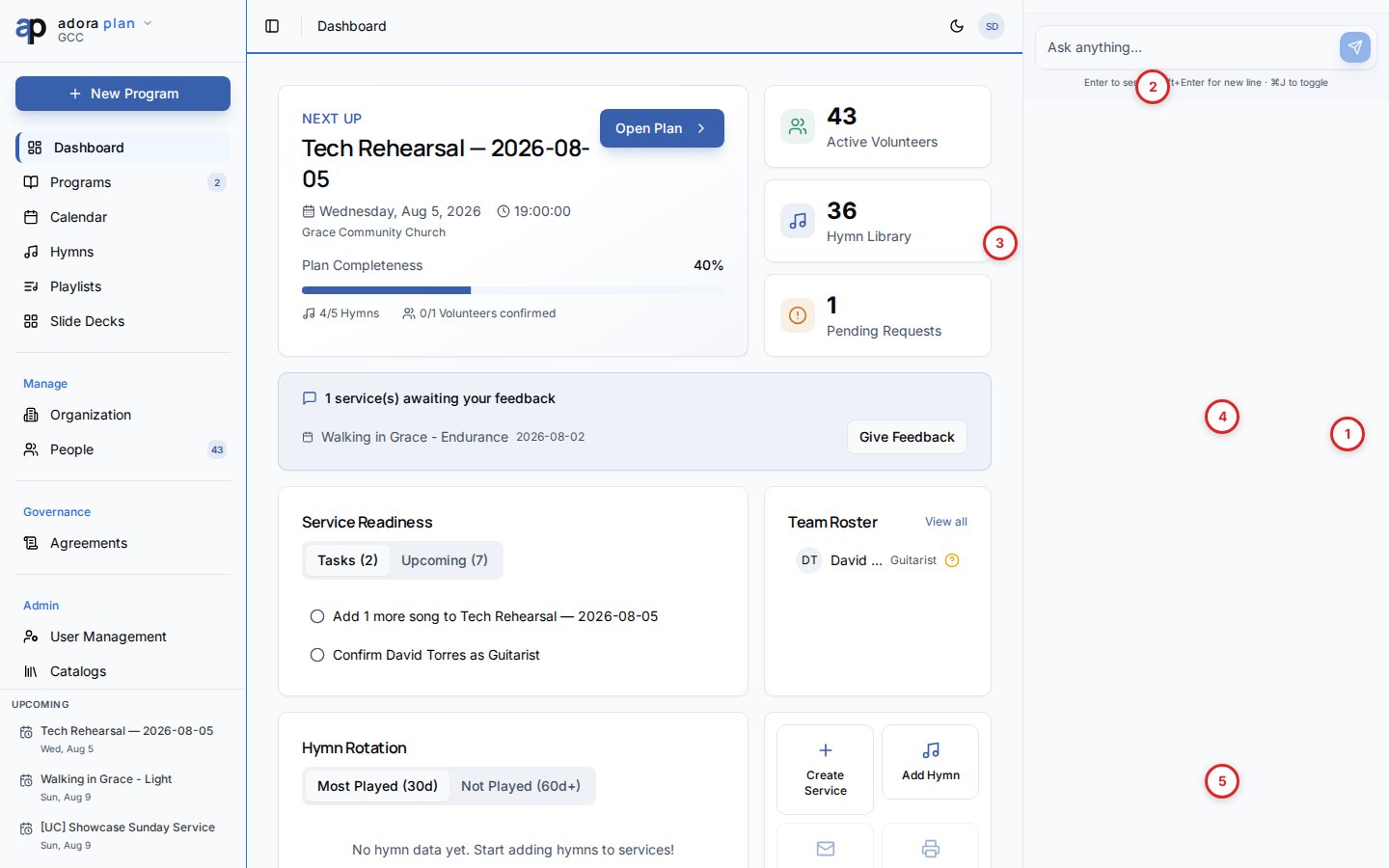
1
From any page
Click the floating Collaboration tab on the right, or press ⌘J / Ctrl+J.
2
From a Program
Open Programs → edit a service. The matching program channel is suggested automatically.
3
Close the panel
Click Close collaboration panel in the sidebar header. Your open/closed preference is remembered.
Chats, Services, and My Msgs
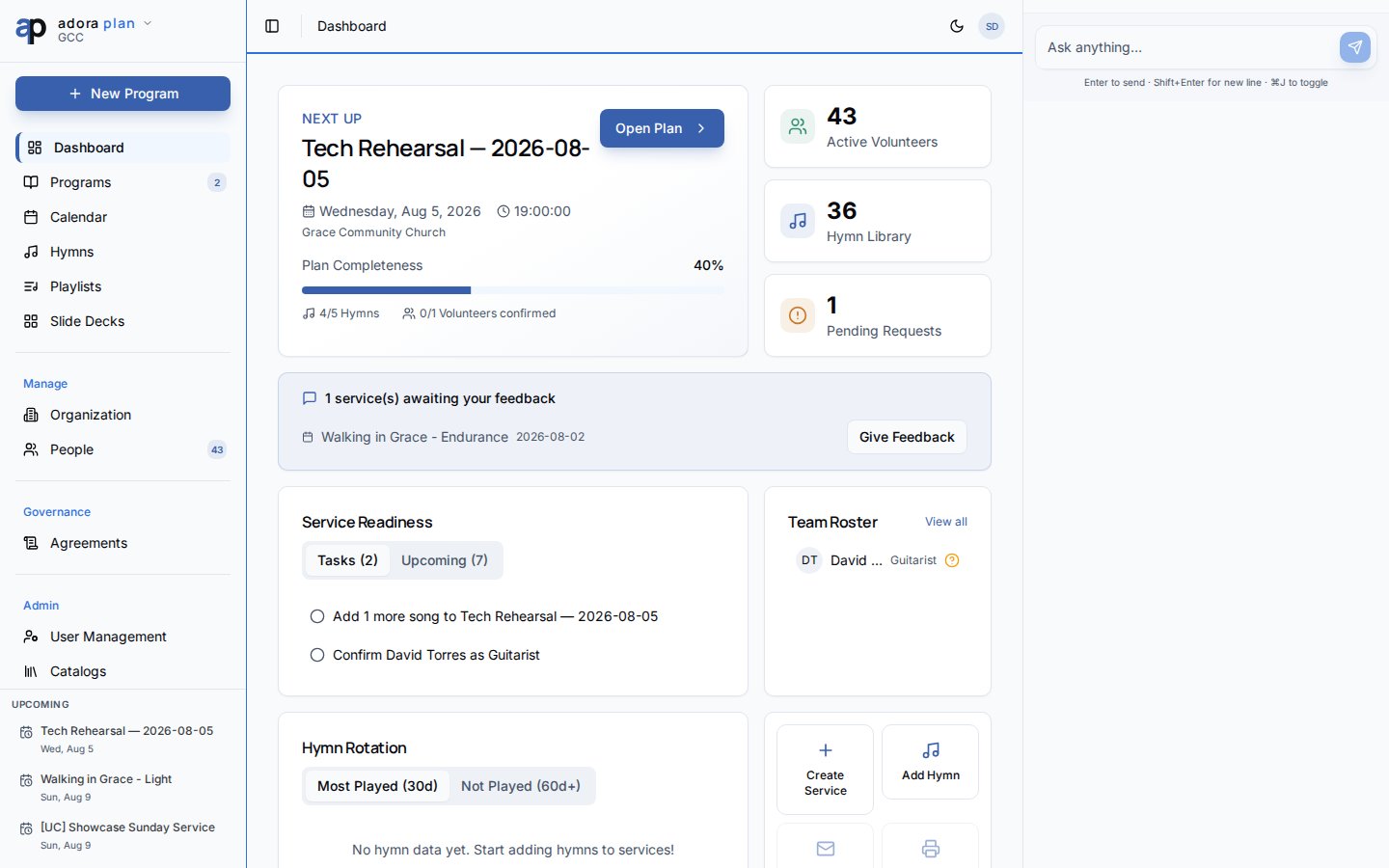
Adora Assistant
Each product (Plan, Care, Counsel) includes a private Adora Assistant channel — only you can see the thread. Use it for planning help without posting to the team channel.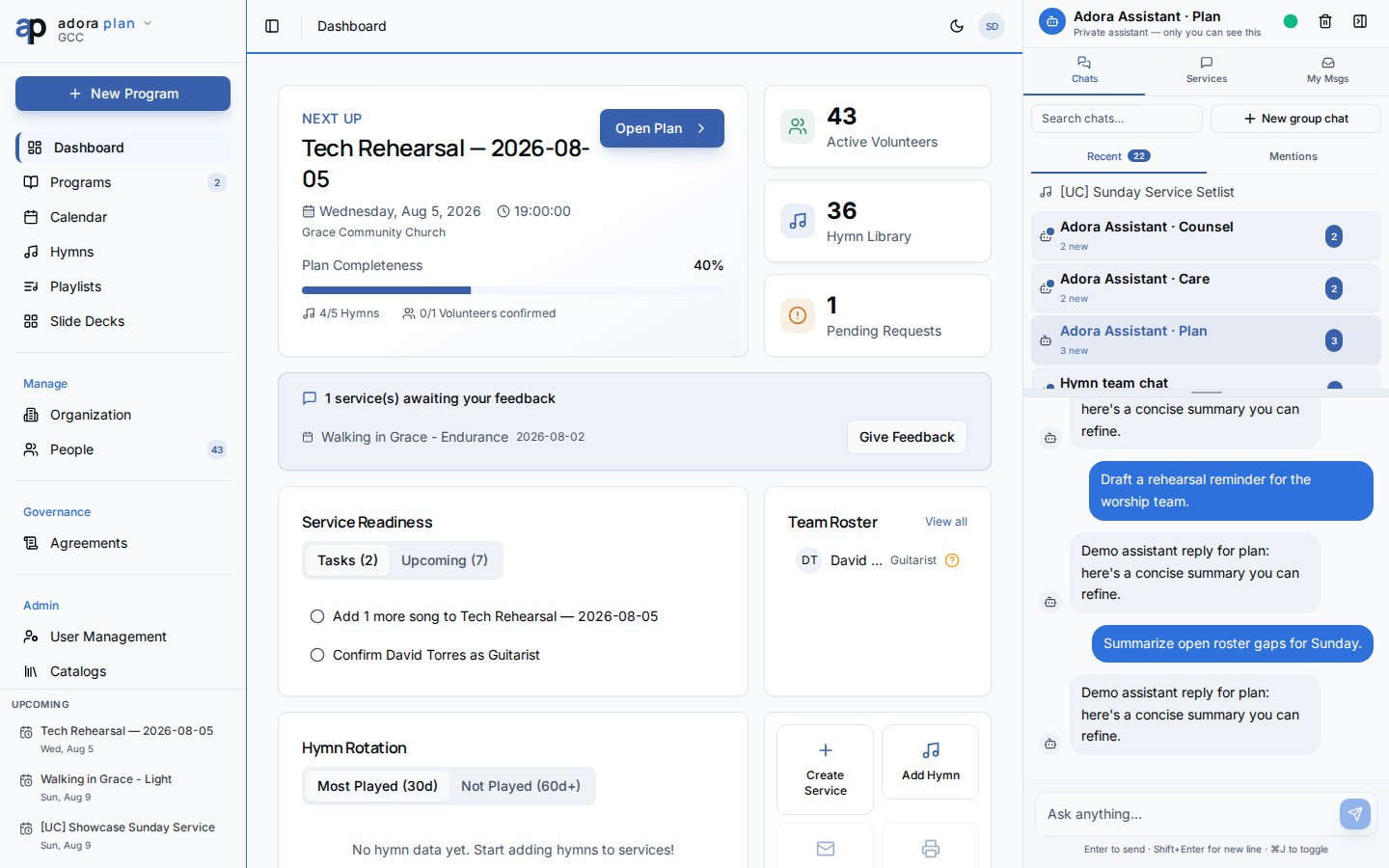
Settings
Church owners set how long idle team channels stay open before archival.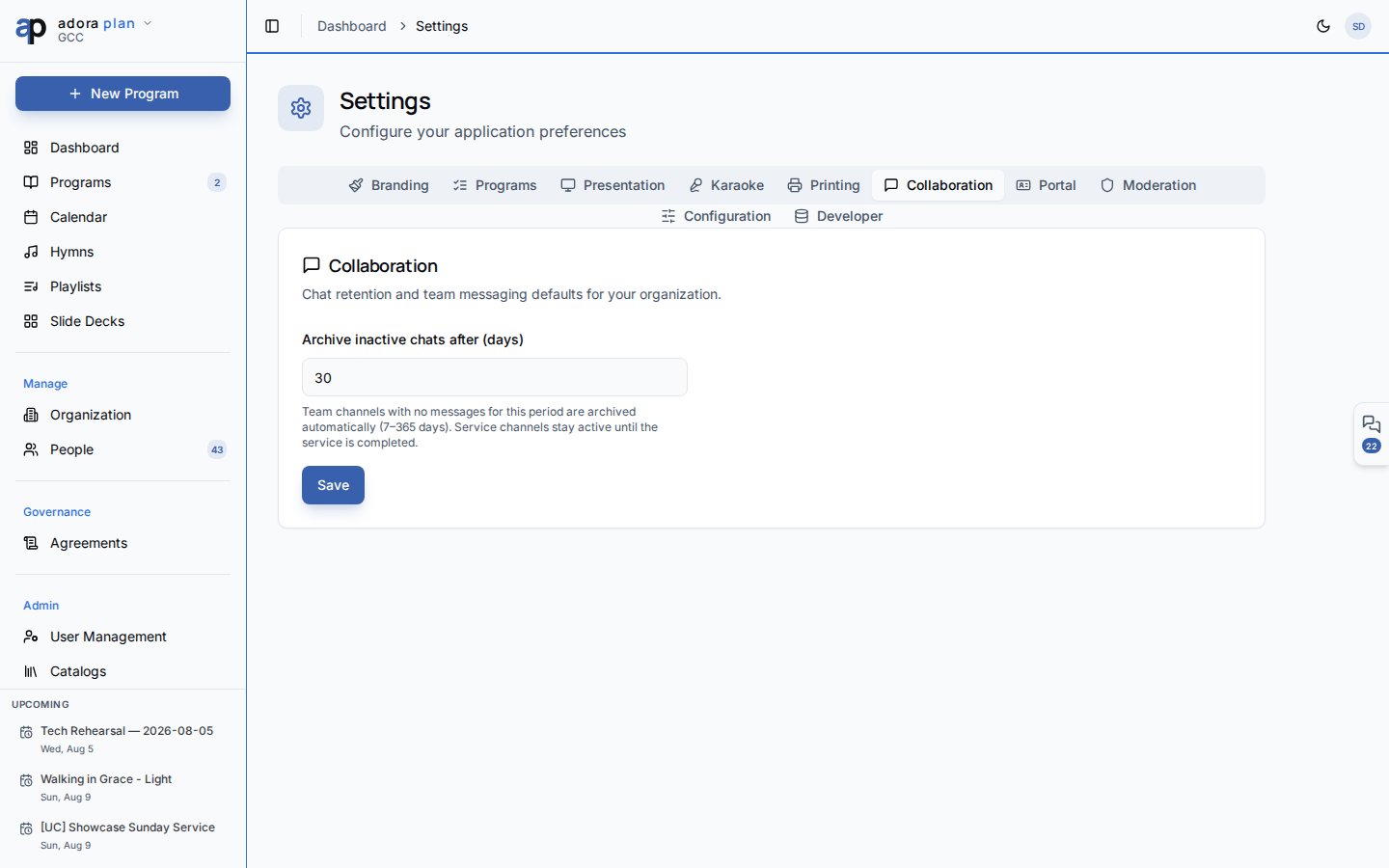
Archived program channels are read-only. Completed services show a Share feedback prompt in the channel.
Related
Programs
Each Program gets a team channel when created.
Roster
Roster invitations surface in My Msgs.
Notifications
Email and in-app delivery preferences.
People & Team
Collaborators synced to program channel membership.