

Quick Start
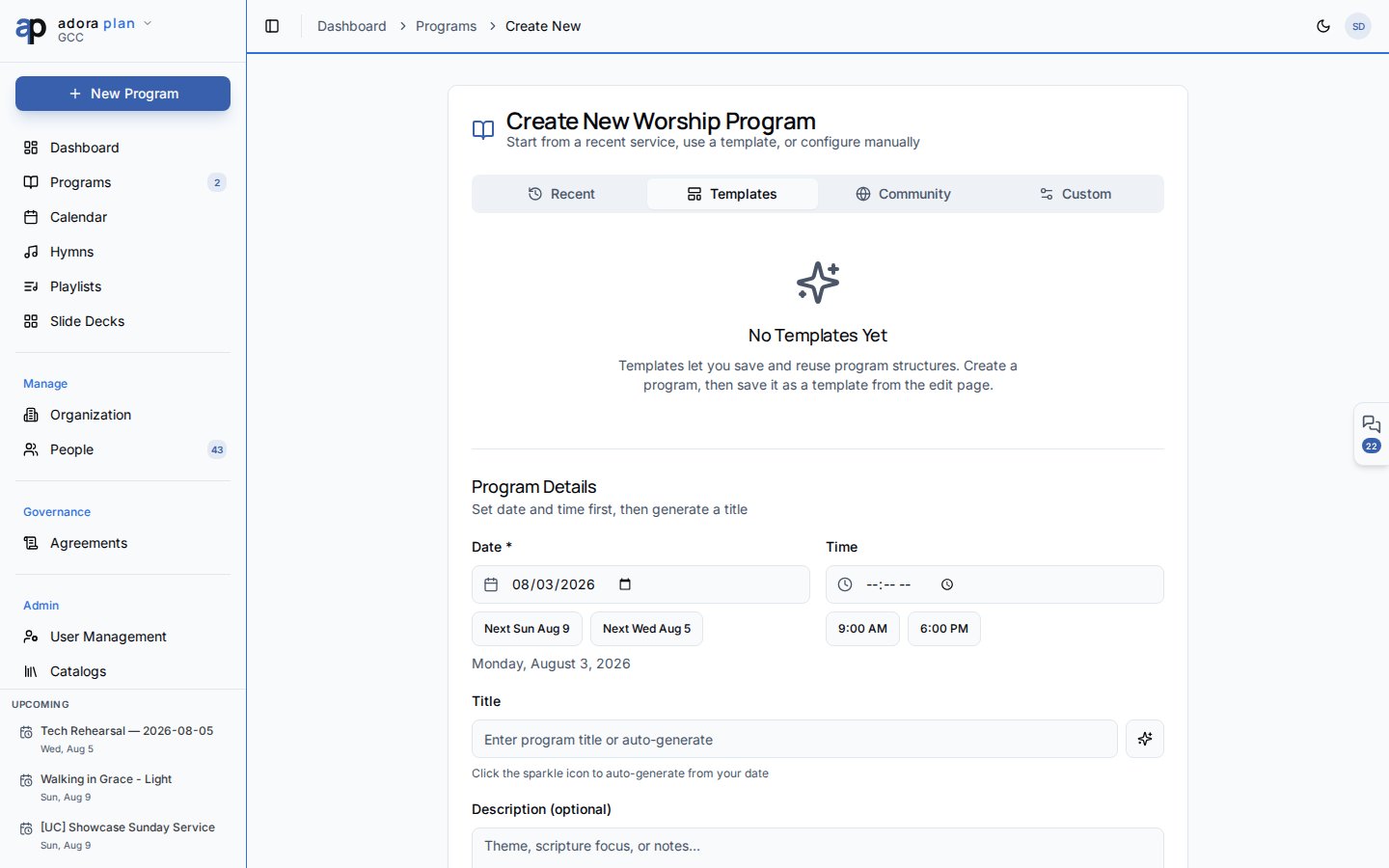
- Click Create Service on the Dashboard or Programs in the sidebar.
- Click Create Program (or use Create → Create Program).
- On the wizard, pick Recent, Templates, Community, or Custom.
- Set service type, date, and time, then click Save as Draft.
- Add hymns and activities to the Service Order, then Finalize & Notify when ready.
How-to Guide
Create a program
1
Open the wizard
Go to Programs and click Create Program, or Create → Create Program.
2
Choose a starting point
- Recent — duplicate a past service
- Templates — start from a saved service order template
- Community — browse templates shared by other churches (moderated)
- Custom — configure date, ministry, and service type manually
3
Save as draft
Click Save as Draft. You are taken to the program editor.
Build the Service Order
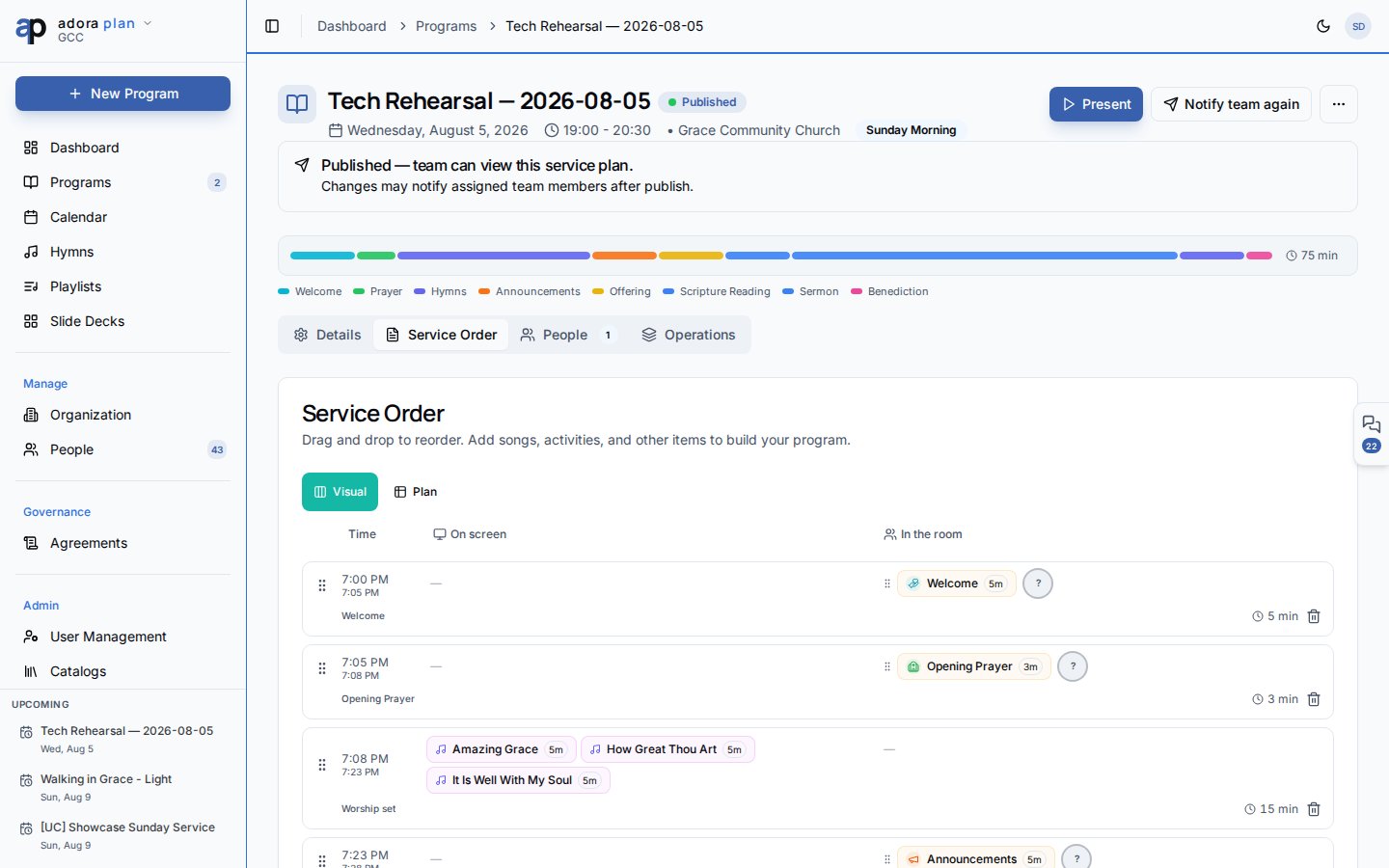
The editor opens on the Service Order tab by default.1
Add songs and activities
Use Add Item to insert:
- Add Hymn/Song — pick from your Hymn Library
- Add Activity — readings, prayers, announcements, etc.
- Add Custom Slide — free-form slide content
2
Reorder items
Drag rows by the handle on the left to match your flow.
3
Save
Changes save automatically. Use Save as Draft in the footer if you are explicitly saving before leaving.
Manage people and activity
Publish and present
From the program header:- Present — launch presentation mode for this service.
- Finalize & Notify — publish and notify assigned team members (confirmation dialog).
- Print Program / Download Report — PDF outputs.
- Share Service — share a read-only link (when enabled for your plan).
Browse and filter programs
On the Programs list page:- Search by title.
- Filter by Ministry, Service type, and Status.
- Use date presets: Upcoming, This Week, This Month, Past.
- Switch between grid and list views.
- Card menu: View, Edit, Duplicate, Publish / Unpublish, Delete.
Related
Plan Your First Service
End-to-end walkthrough for your first program.
Hymns & Songs
Build the library you pull from in the Service Order.
Calendar
Create programs from a date on the calendar grid.
Roster
Assign volunteers to program roles.