

Quick Start
- Click your avatar → Settings.
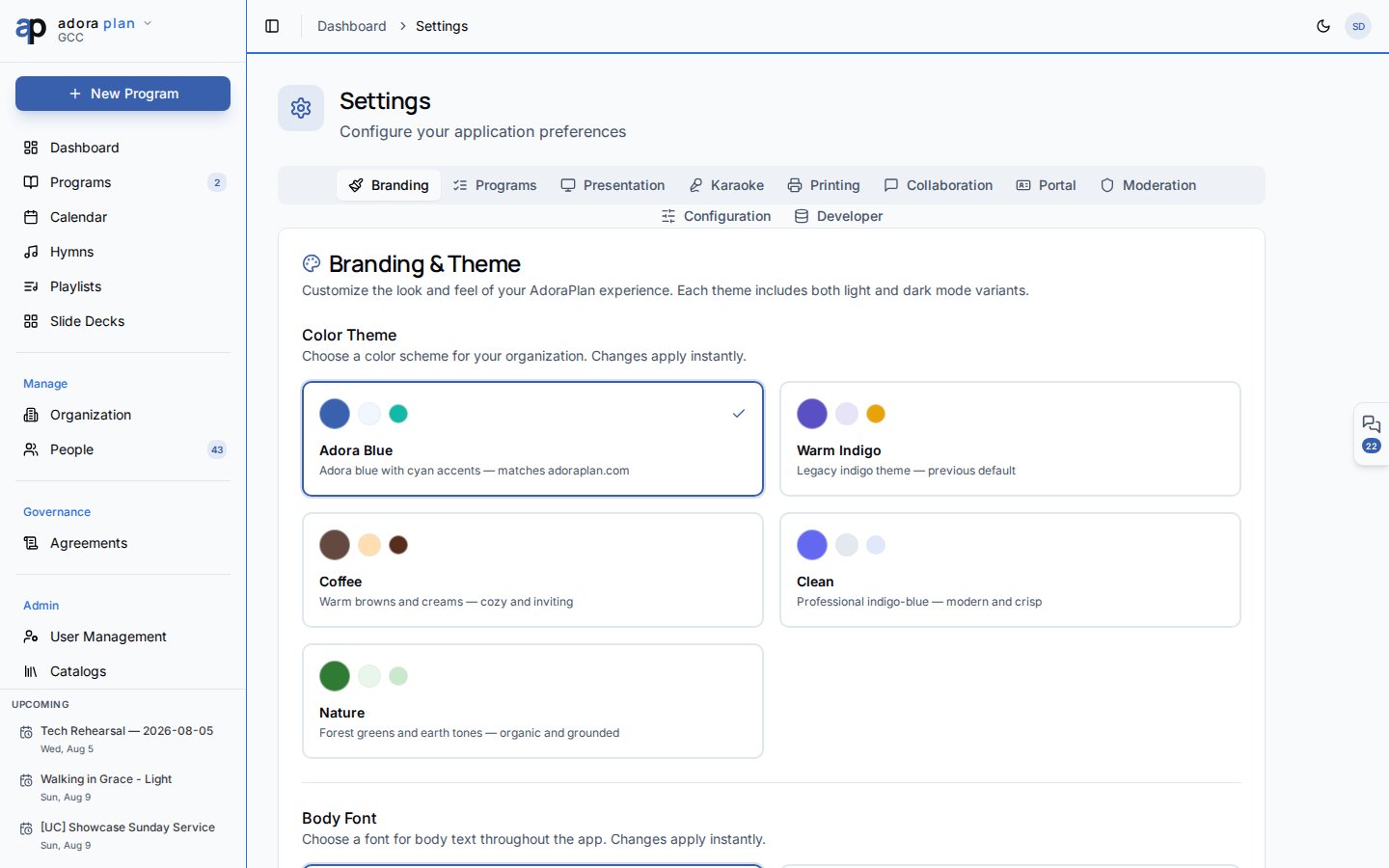
- On Branding, pick a color theme and body font for your church.
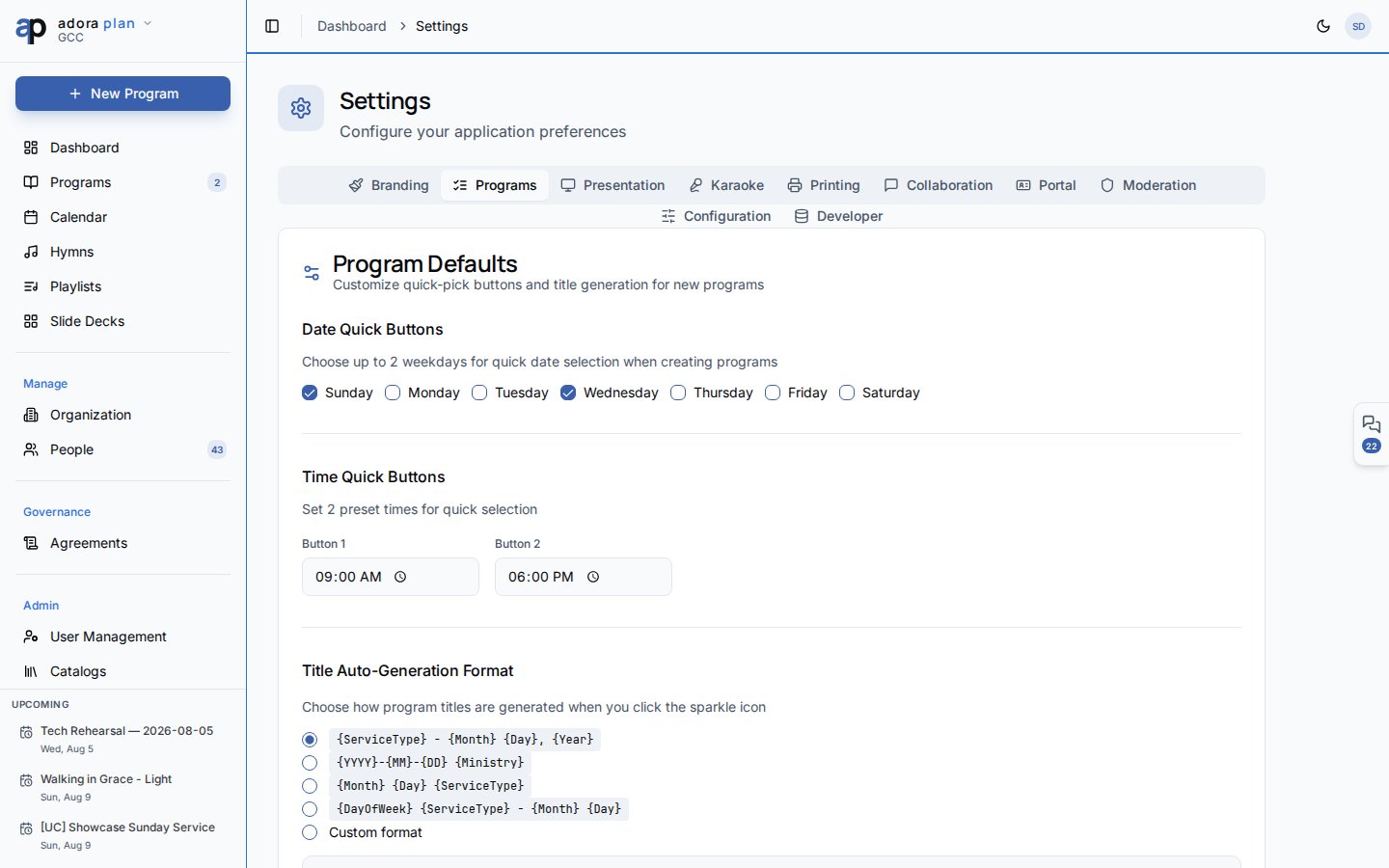
- Open Programs to set date quick-buttons and title auto-generation.
- Tune Presentation fonts and slide options for worship display mode.
- Admins: configure Portal to enable the member portal and its features.
How-to Guide
Branding
Customize your church’s visual identity:- Color theme — applies across the app for all users in your church
- Body font — typography for the interface
- Print / PDF defaults — logo, colors, footer text, and default worship report template (Pro plans unlock full PDF branding)
Programs
Presentation
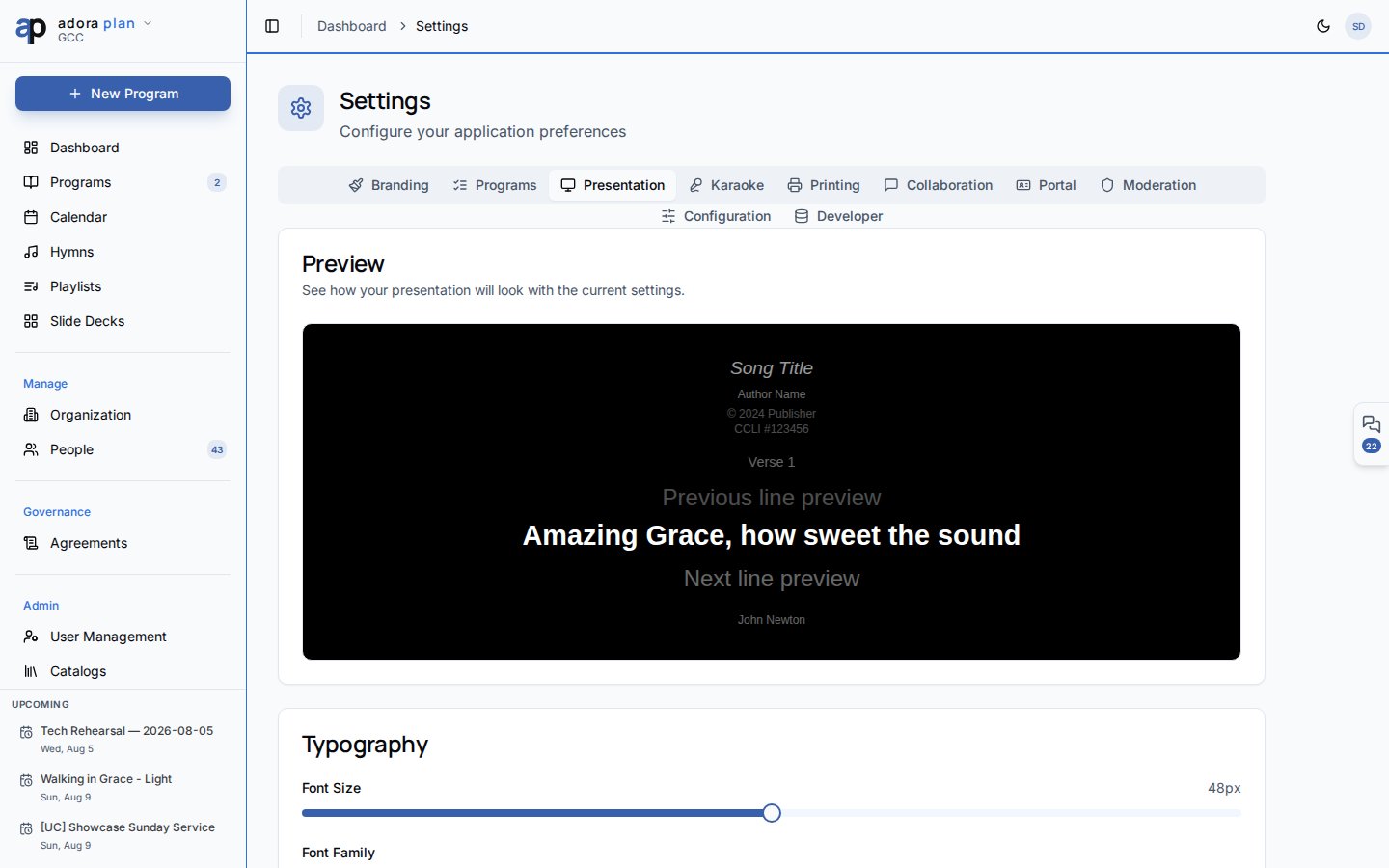
- Font size and family
- Background and text colors
- Toggles for title slide, CCLI number, author, and other on-screen elements
Karaoke
Adjust karaoke-style lyric display (font, colors, layout) for songs that support it. Like presentation settings, these are saved locally on each device.Printing
Placeholder for future print-layout options. Use Branding → Print / PDF defaults for worship report styling today.Portal (admins & moderators)
Enable the member portal and choose which features members can access:- Family profiles, events, serving sign-ups, prayer requests, directory
- Control which directory fields are visible
- Copy the portal URL to share with your congregation
Moderation (admins & moderators)
Review community templates shared between churches:- Pending — new submissions awaiting approval
- Approved / Rejected — history with reject reasons
Developer (church owner only)
Tools for the account that created your church:- Integration health — connectivity checks (database, auth, Stripe, edge functions, analytics, storage)
- Demo data — seed or wipe sample records (non-production environments)
- Notification tester — send test in-app and email notifications
Configuration (plan override) appears only in development environments. Most churches will never see this tab.
Related
Organization
Church structure, ministries, and service types.
Presentation
Run slides during worship using your presentation settings.
Notifications
Per-user notification preferences under Account.
Subscription
Upgrade for PDF branding, advanced reports, and more.