

Quick Start
- Open Hymns in the sidebar.
- Stay on the My Hymns tab.
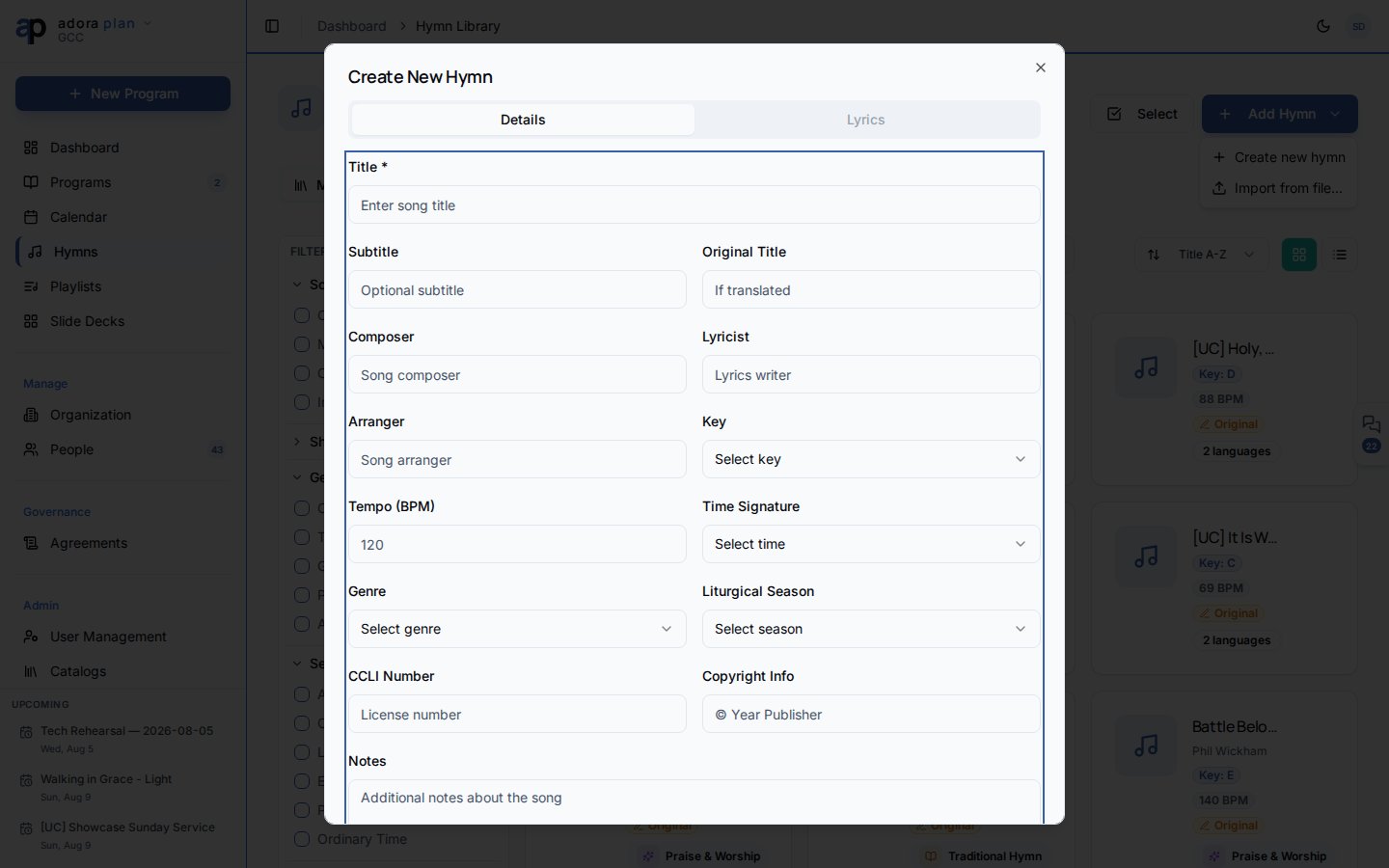
- Click Add Hymn → Create new hymn.
- Enter title, lyrics, and optional key/BPM metadata.
- Save — the hymn is available in Programs via Add Hymn/Song.
How-to Guide
Create a hymn manually
1
Open the editor
Click Add Hymn → Create new hymn.
2
Fill in details
Add Title, lyrics, and optional Key, BPM, genre, and season tags.
3
Save
Save the hymn. It appears on My Hymns immediately.
Import from a file
1
Start import
Click Add Hymn → Import from file…, or drop files onto the page.
2
Supported formats
.pro6 (ProPresenter 6), .pro (ProPresenter 7 XML), .pptx (PowerPoint), .txt3
Review and confirm
Follow the import wizard to map lyrics and confirm each hymn.
Browse Master Catalog and Community
View and edit a hymn
Click a hymn card to open its detail page.- Lyrics — read or edit multi-language lyrics.
- Audio — upload audio and sync lyrics for karaoke mode.
- Info — composer, copyright, CCLI, and tags.
Filter and sort
Use Filters for Source, Genre, Season, Key, and Shared status. Sort by Title A–Z, Recently Added, or Composer A–Z.Related
Programs
Add hymns to a service with Add Hymn/Song in the Service Order.
Presentation
Display lyrics fullscreen during worship.
Dashboard
Track hymn library size and rotation health.
Playlists
Group hymns into reusable lists (documentation coming soon).