

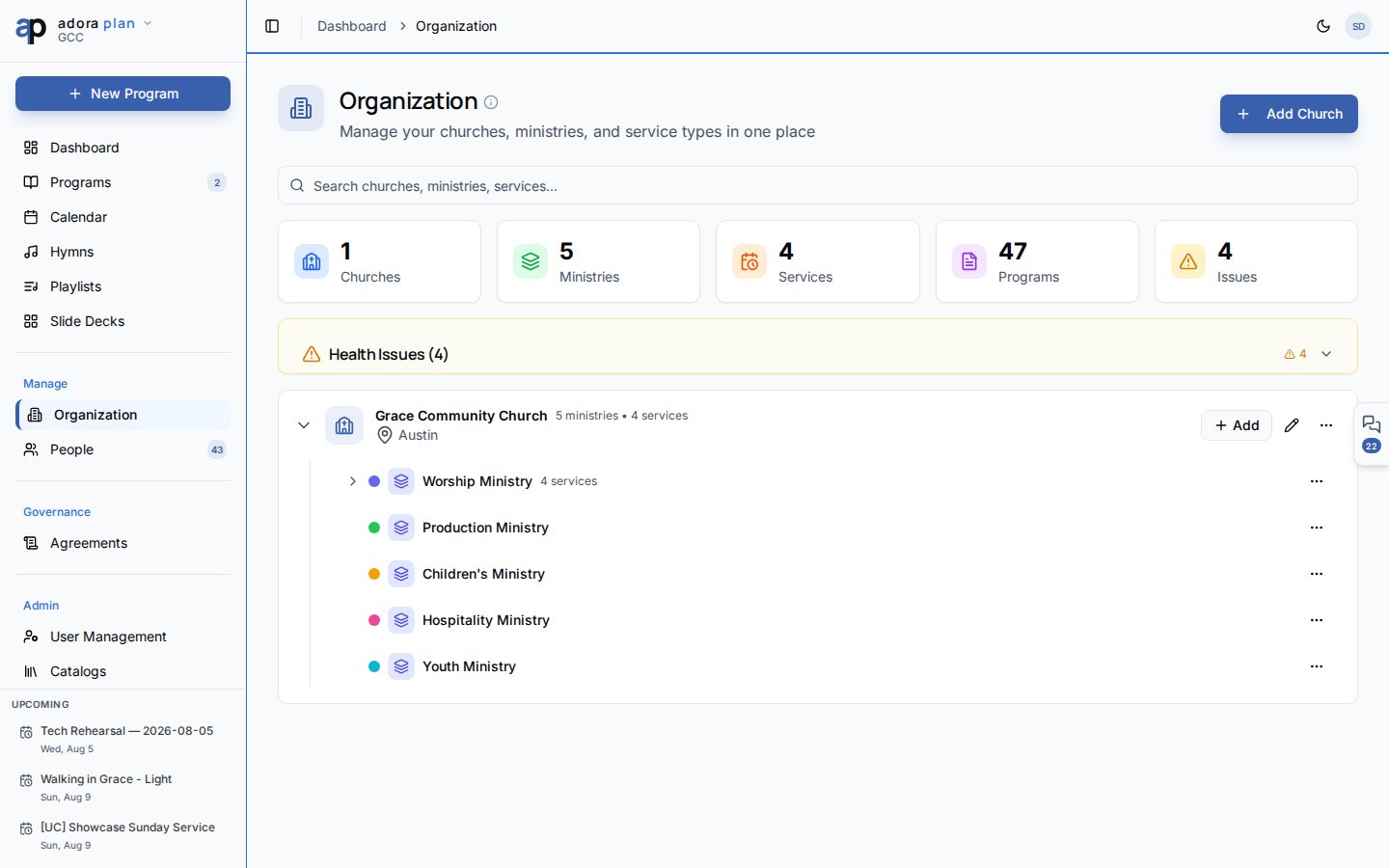
Quick Start
- Open Organization in the sidebar.
- Click Add Church if you have no churches yet.
- Under a church, add Ministries (Worship, Youth, etc.).
- Add Service Types (e.g. Sunday Morning Worship) with day and time.
- Edit a service type → Staffing tab → define required roles and quantities.
How-to Guide
Build the tree
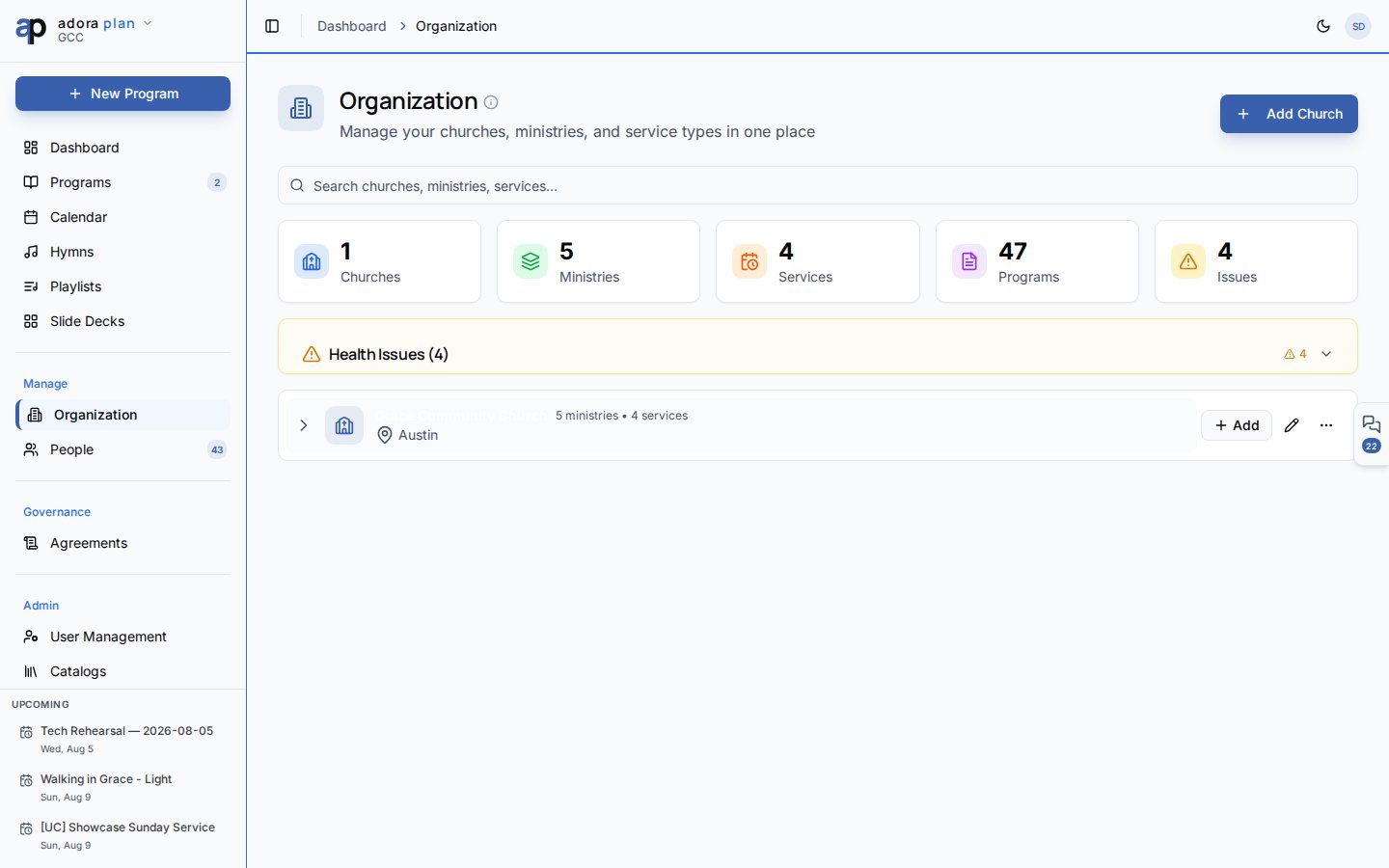
1
Add a church
Add Church → name, optional acronym, city, contact fields.
2
Add ministries
Use the tree actions under a church → Add Ministry.
3
Add service types
Under a church or ministry → Add Service Type → name, schedule day/time, color.
4
Search
Use Search churches, ministries, services… to filter a large tree.
Define staffing requirements

1
Edit service type
Click the pencil icon on a service type → Staffing tab.
2
Add roles
Add rows from your Team Roles catalog with quantities (e.g. 2× Vocals, 1× Drums).
3
Use in roster
When you Auto-fill from Template on a program roster, these slots are created automatically.
Summary cards and health
The top row shows counts for Churches, Ministries, Services, Programs, and Issues. Click Issues to expand the health panel — warnings about missing staffing templates, orphaned nodes, or configuration gaps, with links to fix them.Tree actions
Account → Organization Settings (
/account) is different — it controls tenant name and billing, not the church/ministry tree.Related
Roster
Staffing driven by service-type templates.
Programs
Each program picks a service type from this tree.
People
Collaborators linked to ministries.
Calendar
View Calendar from a church node.